7. Deploy Configs Between Environments
Bragi supports promoting Configs between environments (e.g., Develop → Test, Test → Production) using Deployments.
When to Deploy
Typical scenarios include:
Develop → Test: Dev work is complete and ready for UAT.
Test → Production: UAT is approved, and the pipeline is ready for business use.
Step 1: Open the Deployments Page
Go to the Packages area in Bragi.
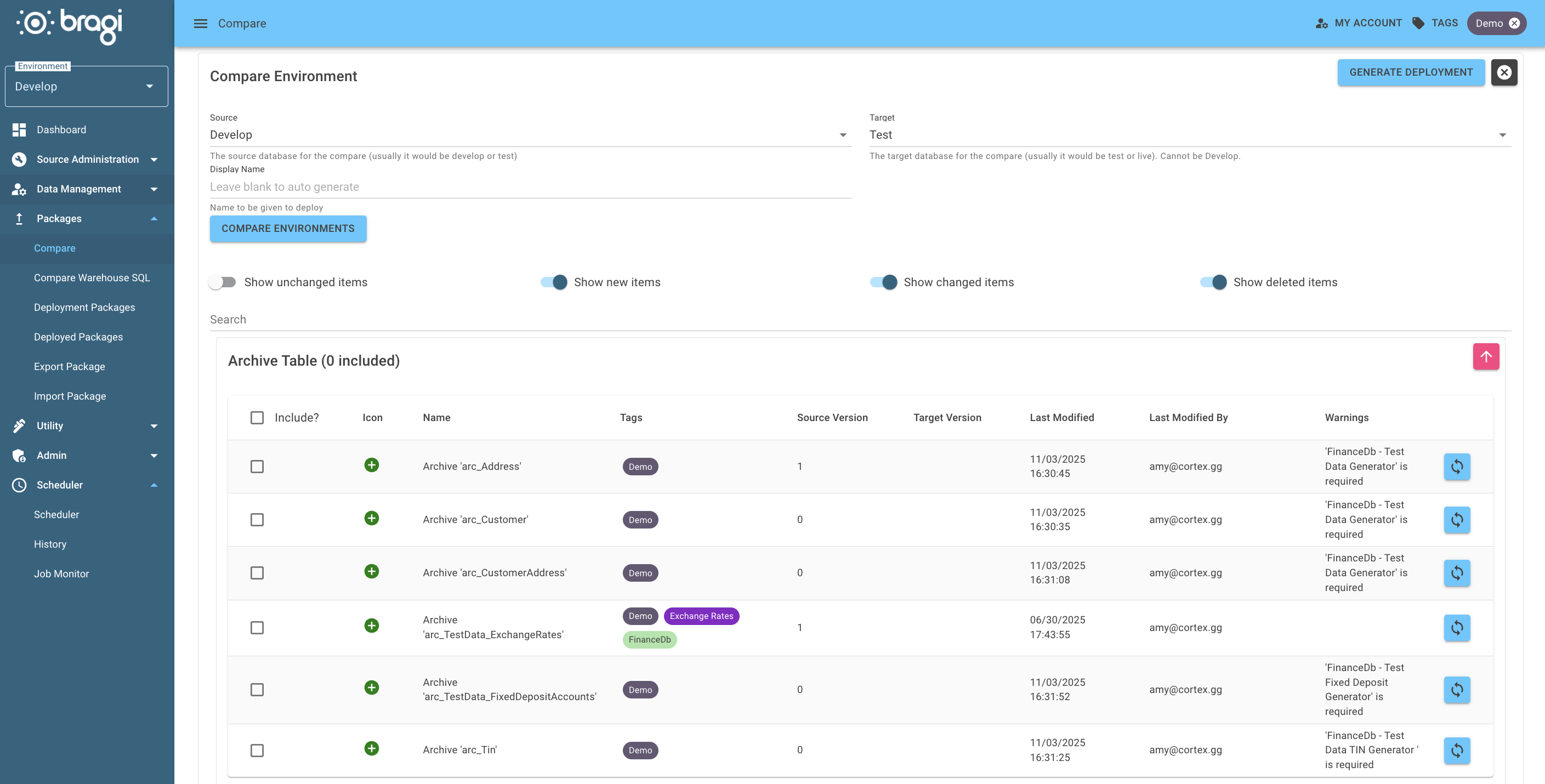
Select your Source Environment (e.g.,
Develop) and Target Environment (e.g.,Test) in Compare.Optionally, provide a Display Name for this Deployment.
Step 2: Compare Environments
Bragi will compare the selected Environments and show:
New Configs: Green
+iconUpdated Configs: Yellow Renew icon
Deleted Configs: Red Delete icon (exists in Target, removed in Source)
You can also:
Group results by Config Type
Filter by specific categories (e.g., only Loads or Transforms)
Bragi automatically calculates and shows dependency issues.
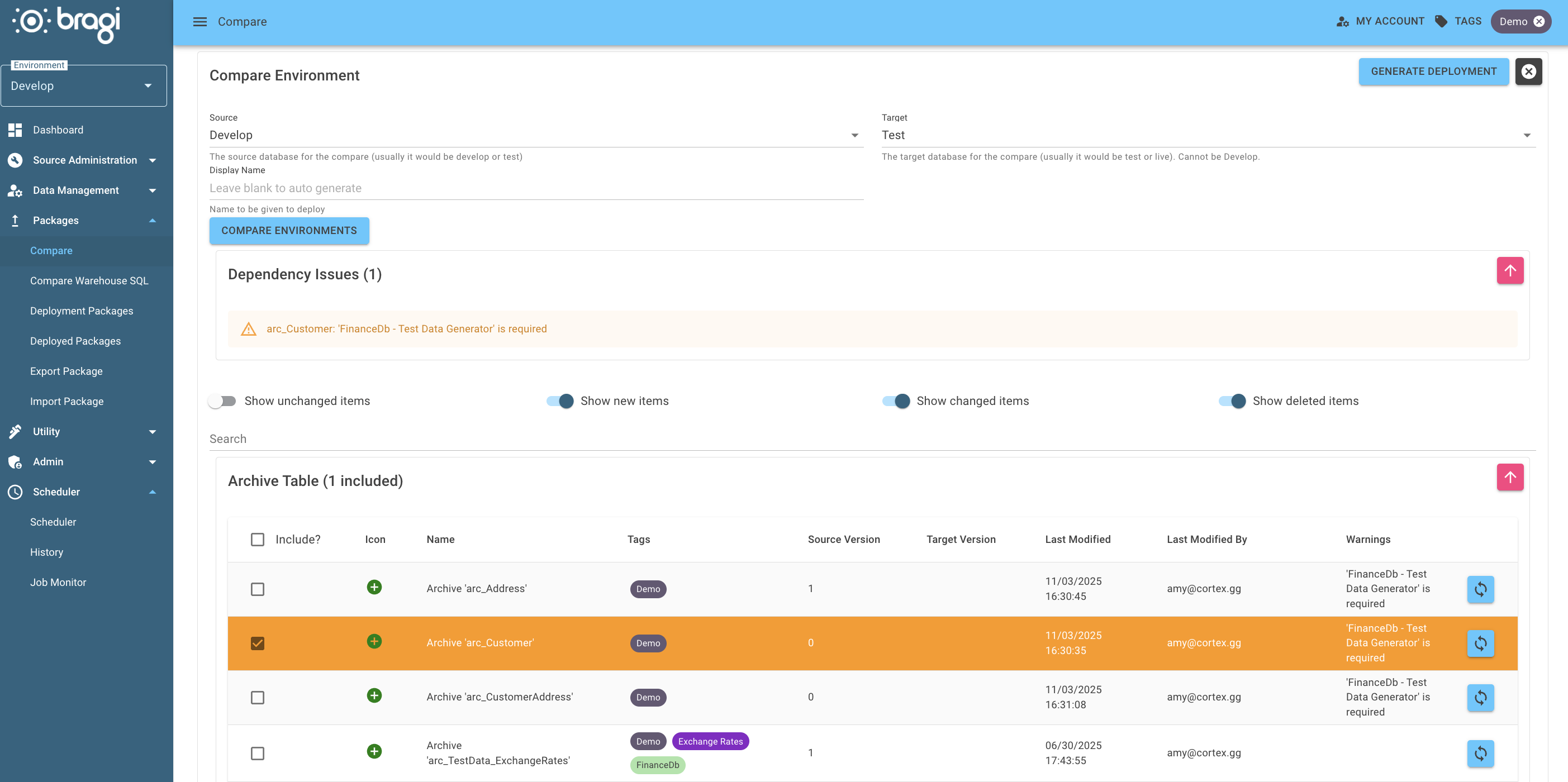
Once you're happy with the selected changes, click Generate.
This will save the Deployment Package, but won’t run it yet.
Navigate to Packages → Deployment Packages to view your saved package.
Step 4: Apply the Deployment Package
Select your package from the list.
Click Deploy to open the deployment confirmation screen.
Review the changes. The target environment is already set: the package recorded it when you generated it from the Compare screen, so there is nothing to pick.
If everything looks good, click the final Deploy button to execute.
Step 5: Review the Result
After deployment, Bragi will show a success/failure summary.
Any errors or issues will be listed here.
You can revisit historical deployments anytime via:
Packages → Deployed Packages
Import and export Bragi packages (.bra files)
Packages in Bragi are exportable .bra files that let you move or share Bragi objects between:
Environments (e.g., Develop → Test → Production)
Instances of Bragi (e.g., different departments or external partners)
With packages, you can build models once and reuse them across instances and environments.
Read the dedicated documentation on exporting and importing packages to learn more.