6. Schedule a Pipeline With Jobs
A Job schedules and coordinates execution of Bragi Configs, lets you set dependencies, and enables automated data workflows. Here's how to create your first Job:
1. Start a New Job
Go to the Jobs section and click Add Job to begin configuration.
2. Configure Job Details
Fill in the required fields:
Field | Description |
|---|---|
Name | Give your Job a clear, descriptive name (e.g., |
Description | Write a summary so others know what the Job does. |
Status | Set Job state: |
Is Scheduled? | If |
CRON | Define the schedule using a CRON expression (see below). |
Schedule Rules | Extra conditions on top of the CRON: working days only, month end or last working day, and which kinds of environment the schedule applies in (see Schedule Rules). |
3. Select Configs for the Job
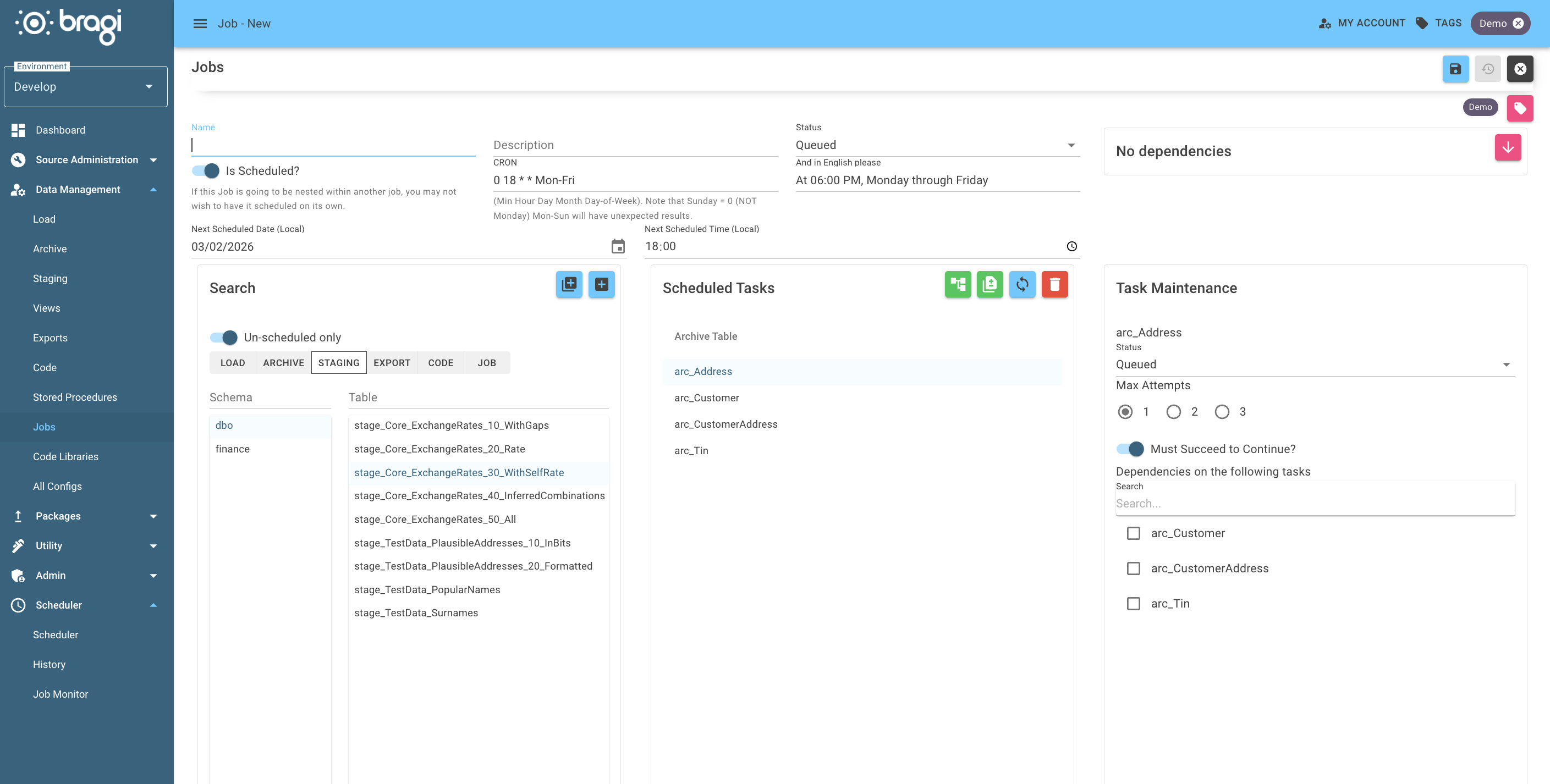
On the Job Edit page, use the search card in the lower half of the screen to find and add the Configs the Job should run.
Added Configs will appear in the Scheduled Tasks tab.
4. Set Task Dependencies (Optional)
Bragi automatically calculates task dependencies based on your Configs.
To manually control the execution order, use the Task Maintenance screen on the right to adjust dependencies.
5. Set Job Dependencies (Optional)
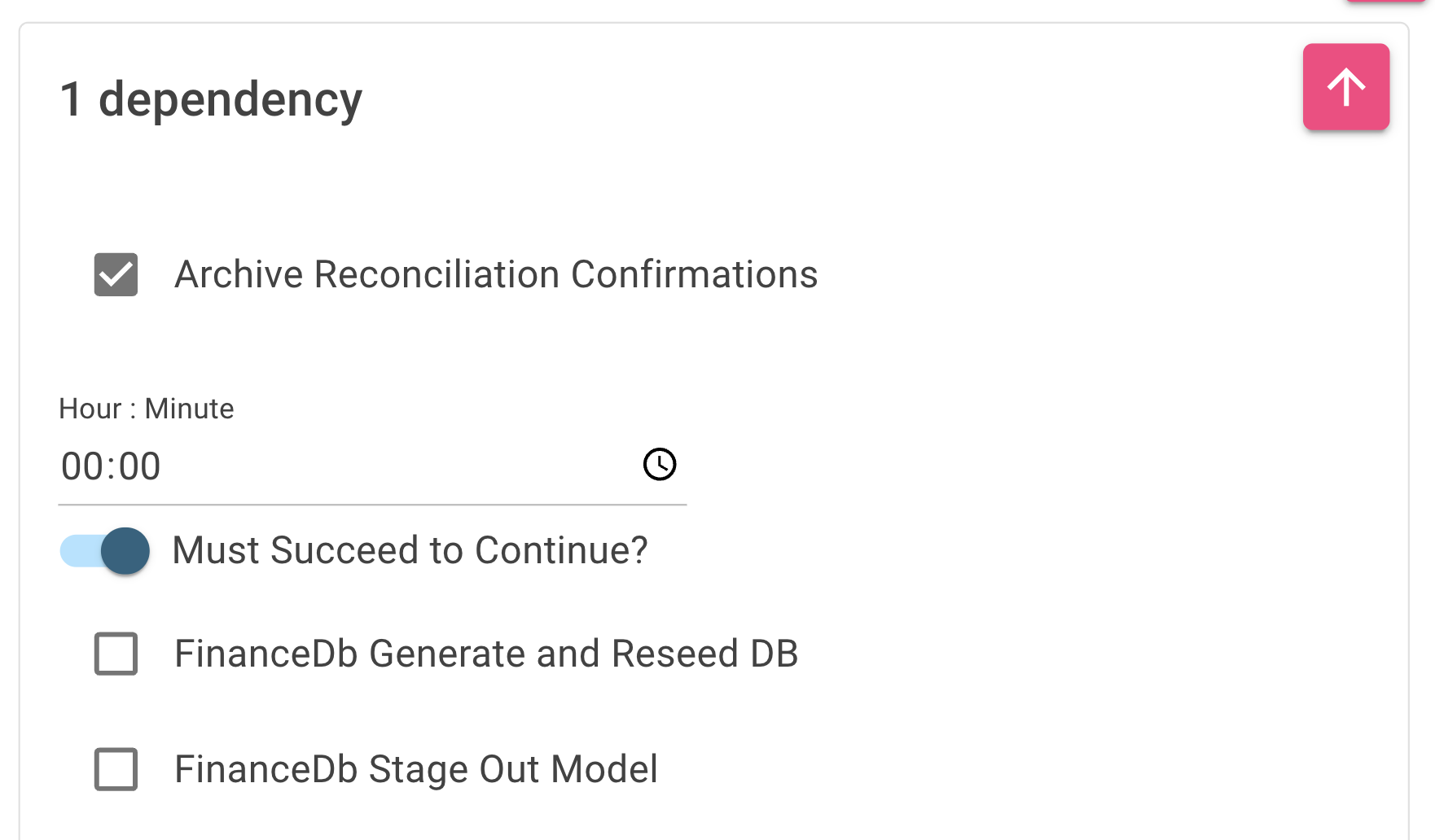
You can nest Jobs by having a Job depend on another.
Click the arrow next to No dependencies under Job Dependencies, then select which Job you want to depend on, and whether it must succeed (and when) for this Job to run.
For nested Jobs, set Is Scheduled to
falseso they don’t run independently.Jobs can trigger each other in complex workflows.
6. Define CRON Scheduling
Bragi uses CRON to manage Job schedules.
Enter a CRON expression in the CRON field.
The And in English Please field translates your CRON expression into a human-friendly description.
CRON fields are:
Minute
Hour
Day of Month
Month
Day of Week
CRON Examples
Expression | Description |
|---|---|
| Runs every five minutes |
| Runs every hour at 15 minutes past the hour |
| Runs every three hours |
| Runs daily at 1:00 AM |
| Runs Monday–Friday at 8:00 AM |
| Runs at 5:00 PM on the 2nd day of each month |
| Runs at 2:00 AM on the 1st day every 6 months |
CRON alone cannot express "the last day of the month" or "the last working day of the month", it cannot skip the holidays your business observes, and it cannot limit a Job to Production. For those, pair a CRON with the Schedule Rules.