Transform Data Using C# With Code Configs
Code Configs let you write custom C# Code to handle edge cases, external API calls, or complex business logic.
Code components behave like any other step in your pipeline, and they are integrated with the rest of Bragi’s automation features.
Bragi ensures:
Environment variables are automatically passed in
Each version of your code is tracked and auditable
Dependencies are resolved automatically so you can build once and promote safely
Step 1: Name Your Code Config
When setting up a new Code component, you’ll be asked for:
Field | Description |
|---|---|
Display Name | A human-friendly name for the Code, used throughout Bragi’s UI. |
Description | Explain what the Code does and why. Especially useful when someone else picks it up later. |
Manual Lifecycle Handling | By default, Bragi truncates and reloads the output table each time. Turn this on if you want full control (e.g. to append, not truncate). You still need to return the data, but Bragi won’t touch the table lifecycle. |
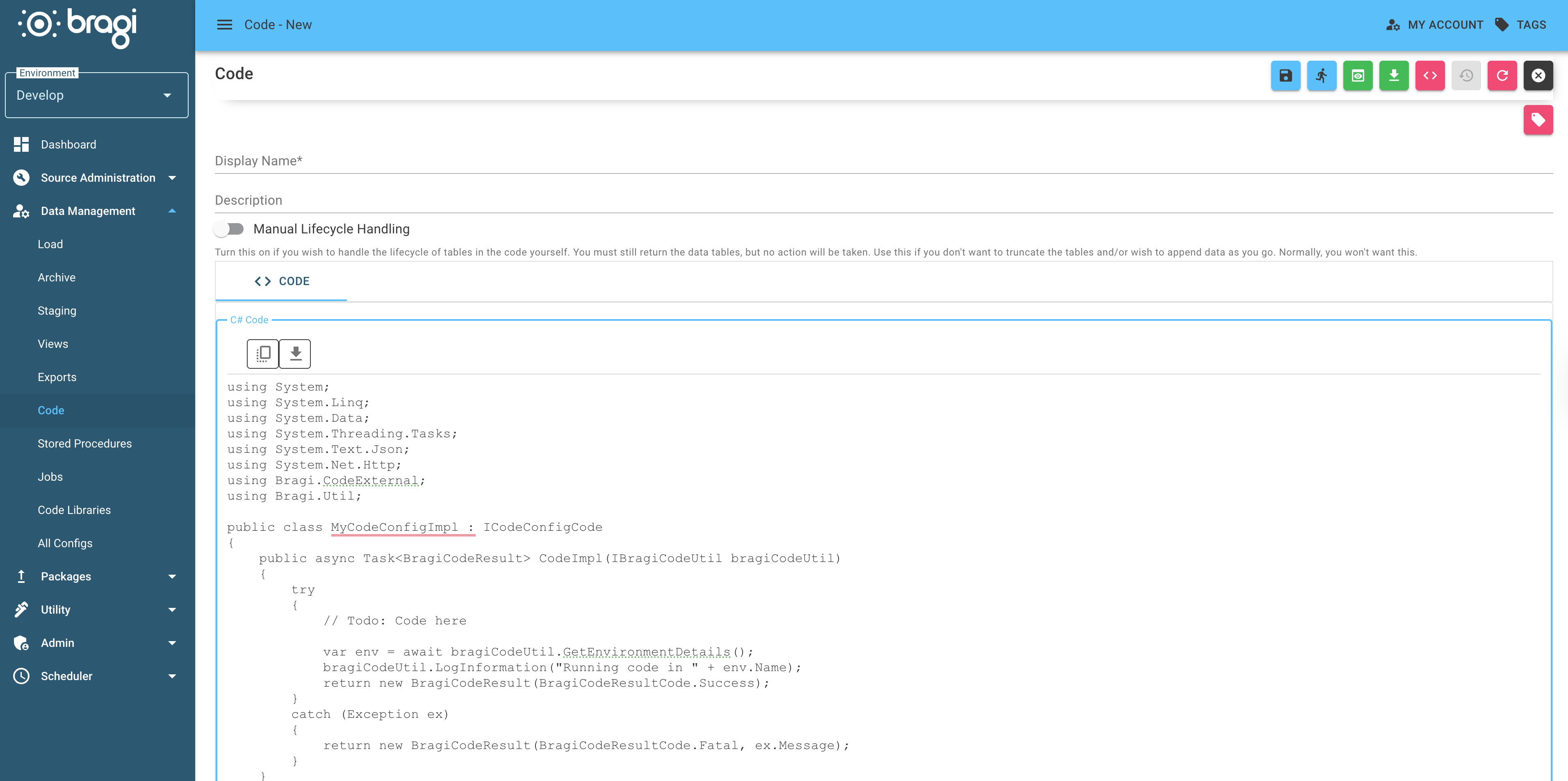
Step 2: Write Your Transformation C#
Bragi gives you an empty template when creating a new Code:
Use BragiCodeExtension classes for consistency across code configs and use BragiCodeUtil classes to speed up development.