Load Data from Text or Excel Files
Bragi makes it easy to ingest data from a wide range of file formats including CSV, TXT, and Excel. You can upload files manually, or pull from a file system.
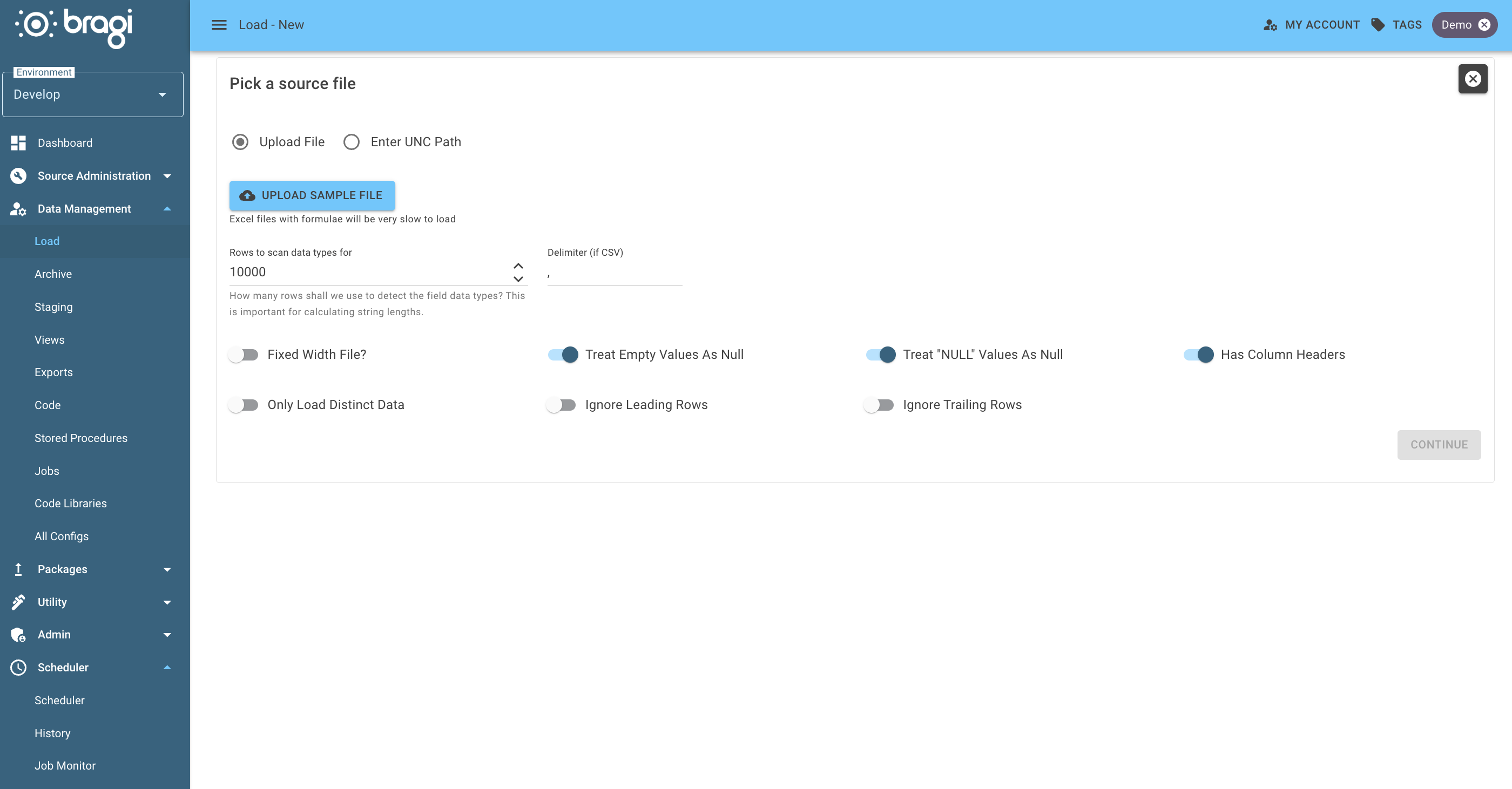
Step 1: Select the Source File
You can either:
Upload a file directly, or
Reference a file path using a UNC-supported path, provided Bragi has permission to access it.
Once the file is selected, Bragi automatically scans the contents to detect:
Column names
Data types (e.g. string, date, integer)
Basic relationships between fields
This kickstarts the process of preparing the data for use.
Step 2: Configure File Analysis Settings
These options control how Bragi samples and interprets your data before it’s loaded.
Field | Description |
|---|---|
Rows to Scan for Data Types (default: 10,000) | Determines how many rows Bragi should look at to estimate each column’s data type and size. A higher number gives better accuracy, especially for variable-length strings or mixed content. |
Fixed Width File | Enable this if your file uses fixed-width formatting (no delimiters like commas or tabs). Bragi will use predefined column widths instead of splitting by a character. Great for older systems or mainframe exports. |
Treat Empty Values as NULL | Switch this on to convert empty strings (e.g. "") into NULLs. Useful for reducing storage and avoiding noise in your dataset. |
Treat “NULL” Values as NULL | If your file contains the literal string "NULL" to represent missing values, this will convert those to proper database NULLs. |
Has Column Headers | Turn this on if the first row of your file contains field names. Bragi will use those to automatically map columns. If headers are missing, columns are auto-named using their data type and position (e.g. Int_1, Varchar_2). |
Only Load Distinct Data | Skips duplicate rows during the load process. Handy for avoiding repeated inserts when source files are noisy or already de-duped upstream. |
Ignore Leading Rows | If the top of your file includes non-data lines (e.g. notes, timestamps, metadata), this lets you skip them. |
Ignore trailing rows | Similar to above, but for the end of the file. Skip totals, footers, or closing comments that aren’t part of your dataset. |
Click Continue to move to table setup.
Step 3: Configure the Load Table
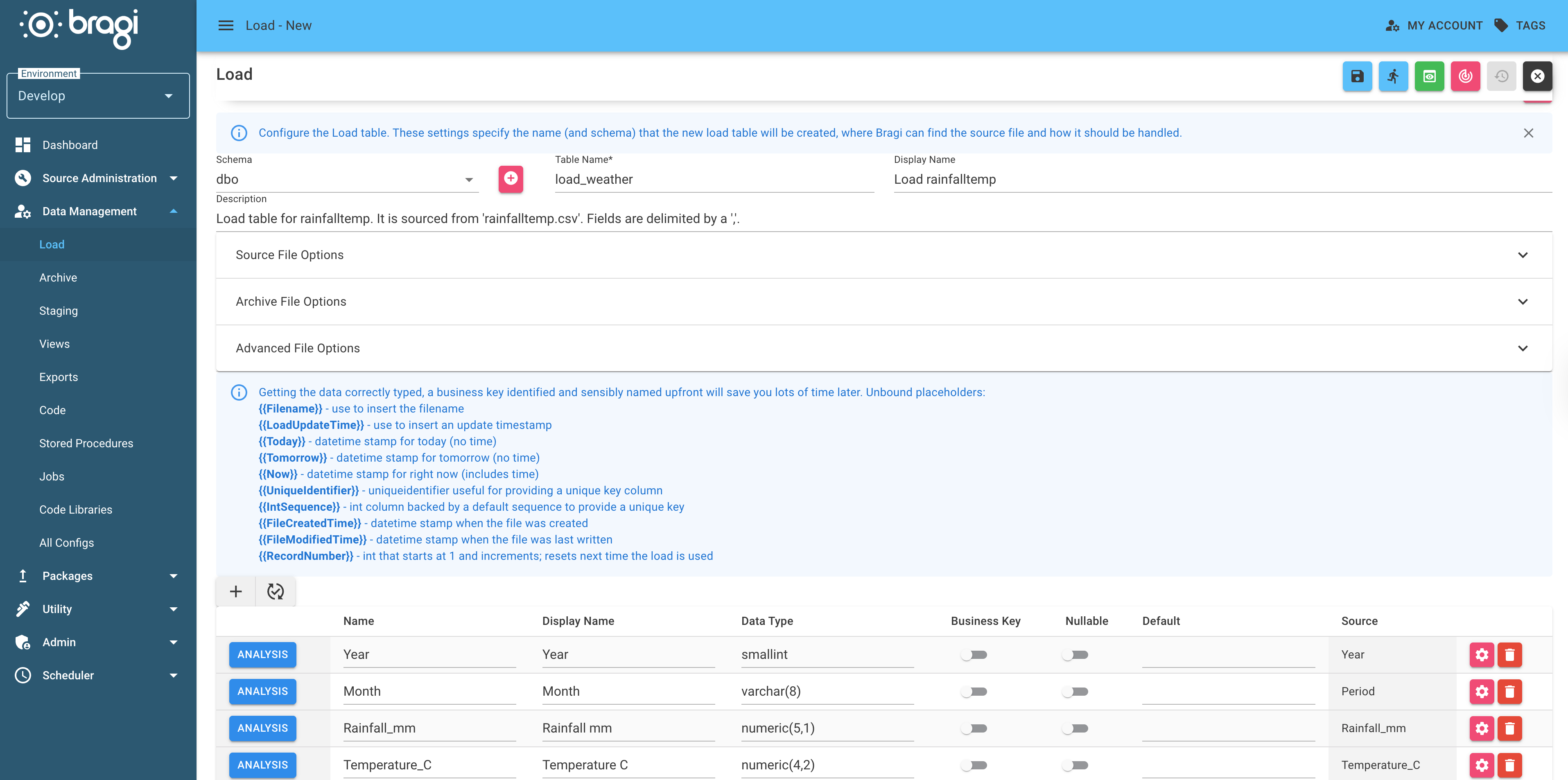
Define how and where the data will be stored in Bragi:
Field | Description |
|---|---|
Schema | Schema the table belongs to. |
Table Name | The actual name of the table in the database. |
Display Name | A more friendly name used inside Bragi. |
Description | Notes for future you (or someone else) - especially helpful if this load isn’t a typical one. |
Step 4: Set the Source File Options
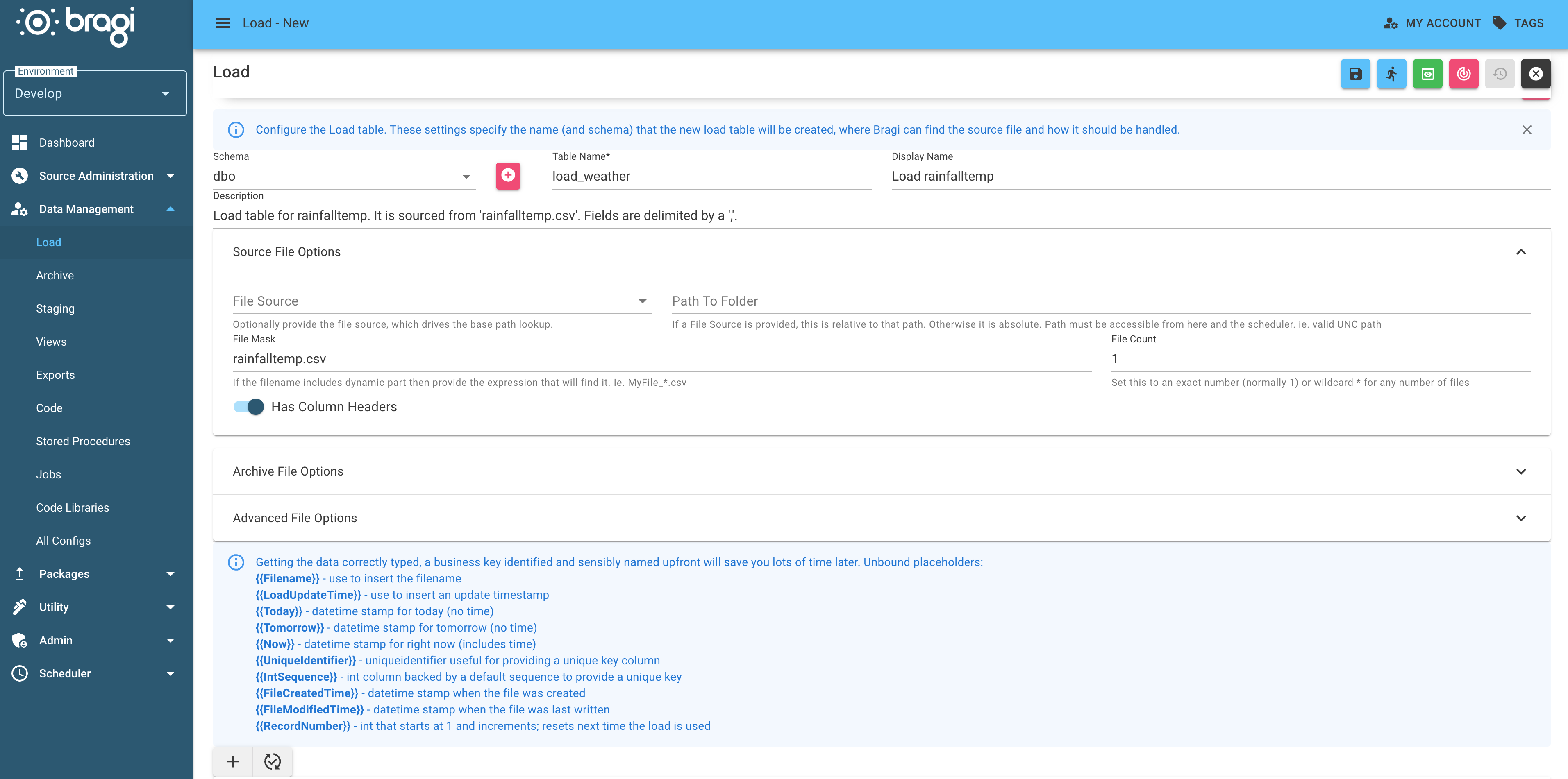
Before telling Bragi exactly which file to load, you need to point it to the right folder. Bragi does this using File Sources
File Sources are preconfigured folder locations that can vary by environment.
By using a File Source instead of hard-coding paths, Bragi automatically picks the correct folder based on the environment the load is running in. You must configure File Sources in Source Administration → File Sources before they will appear here.
Now, configure your load’s file location:
Field | Description |
|---|---|
File Source | Choose from a preconfigured source folder. |
Path to Folder | Acts as a base or sub-path within the selected File Source. |
File Mask | Use wildcards to match filenames (e.g. Report_*.csv). |
File Count | Expected number of files (use if the count varies). |
Has Columnn Headers | Lets Bragi know whether headers are present. |
Step 5: Archive File Options
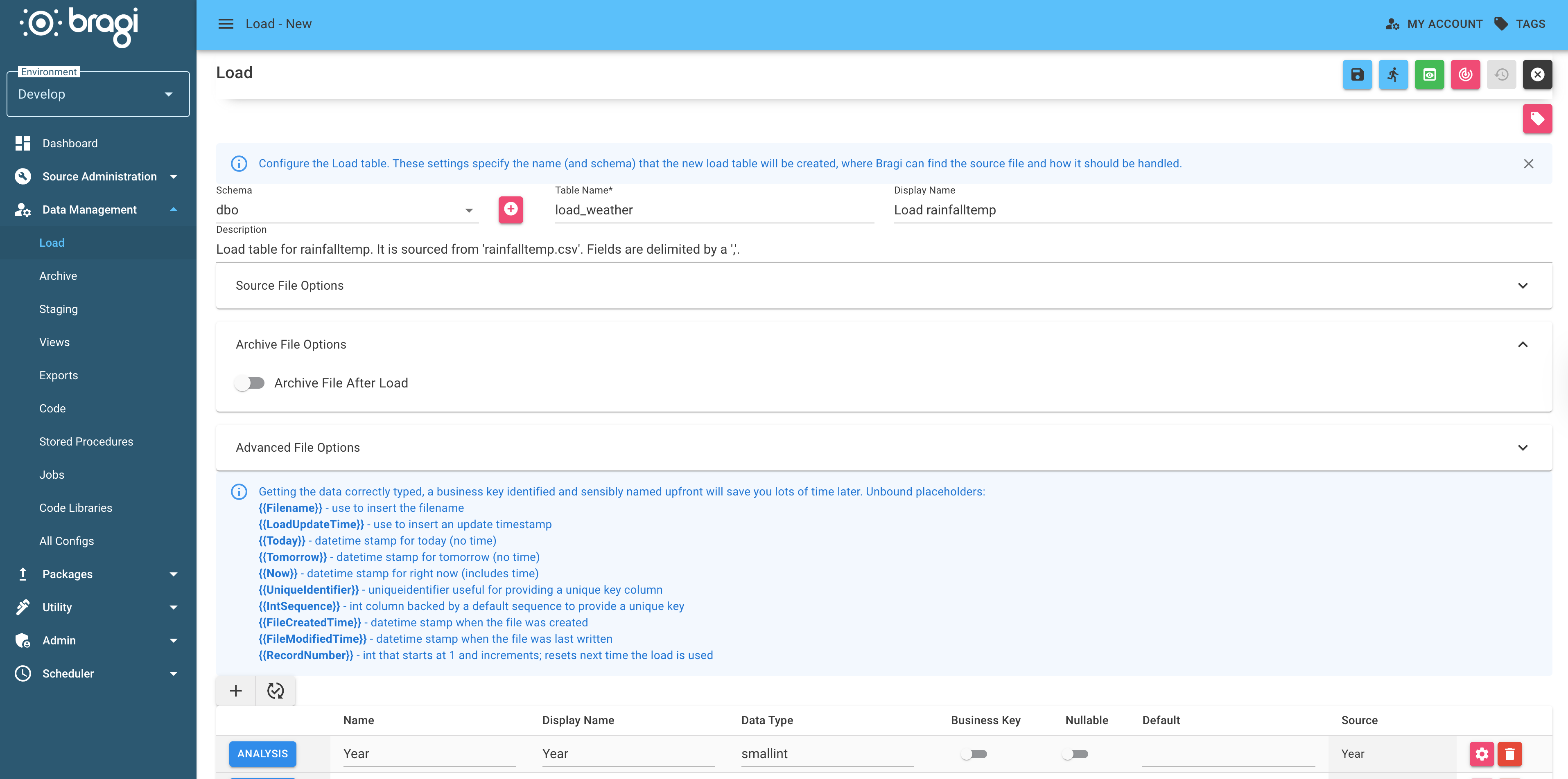
Automatically move processed files to another folder for safekeeping and keep a historical record of your data.
Field | Description |
|---|---|
Archive File After Load | Moves file once loading is complete. |
Archive on Empty Input File | Move the file even if it had no usable data. |
Overwrite Archive File If It Already Exists | When on, an existing file with the same name in the archive folder is replaced. When off (default), the new file is kept alongside the old one with a numeric suffix, e.g. |
File Source / Path to Folder | Where to send archived files. |
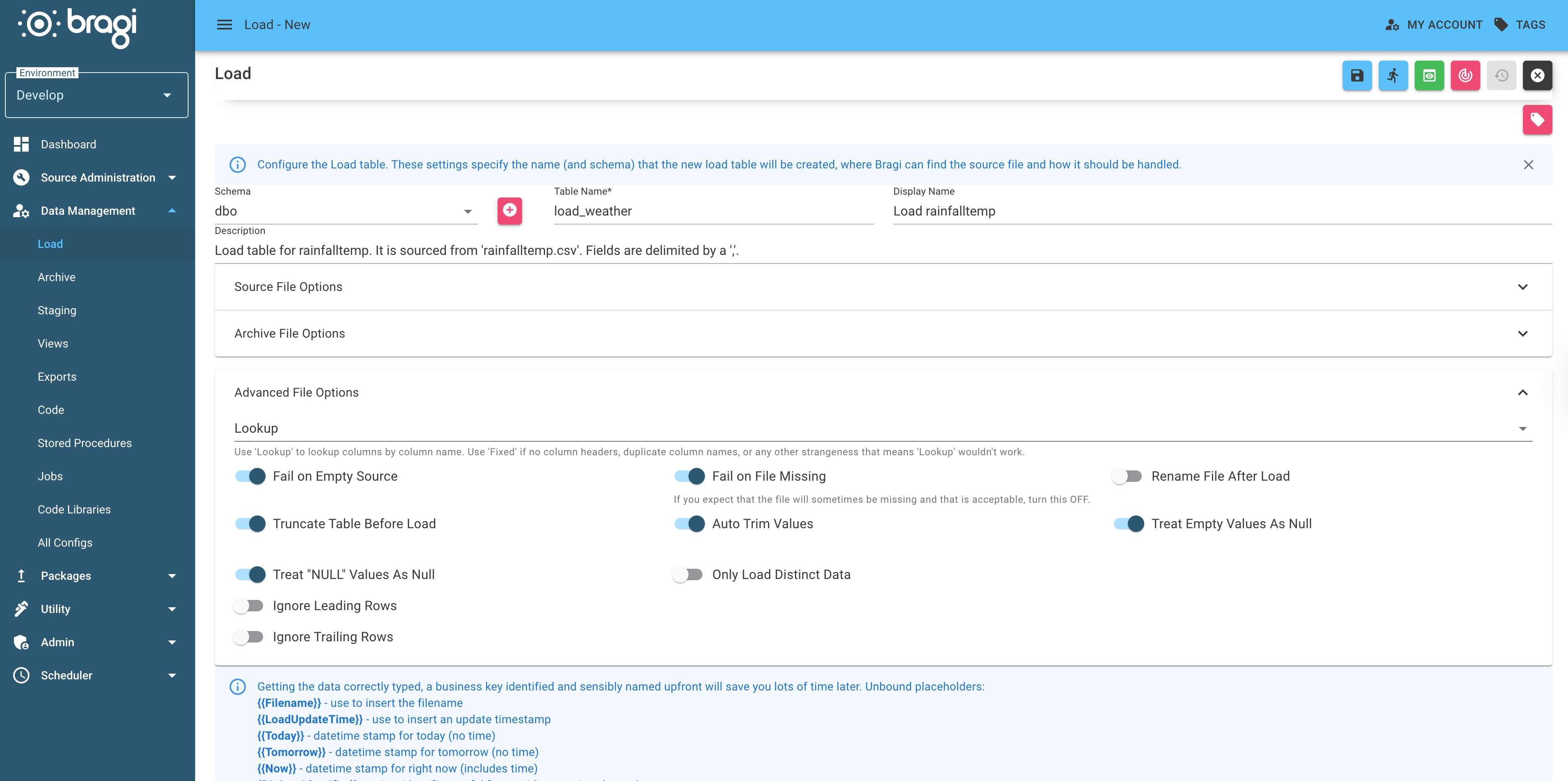
Step 6: Advanced File Options
Control how Bragi handles columns and load behaviour behind the scenes:
Field | Description |
|---|---|
Delimiter | The character used to separate columns in the file (e.g. comma, tab, pipe). Defaults to comma; set it before picking the file (or change it here and use Redo Analysis to re-introspect). Use |
Lookup (default) | Columns matched by name. Best for files with headers or columns that may change order. |
Fixed | Columns matched strictly by position. Only use this when Lookup fails or column order is guaranteed. |
Fail on Empty Source | Bragi will throw an error if the file is empty. Use this if empty files are unexpected and should halt the process. |
Fail on Missing | Stops the load if the number of files doesn’t match the expected |
Rename File After Load | Adds a |
Truncate Table Before Load | Clears the target table before inserting new rows. The default behaviour for most loads. |
Auto Trim Values | Strips leading and trailing whitespace from string fields. Usually a good idea unless whitespace has meaning in your data. |
Step 7: Use Placeholders and Inspect Columns
After Bragi analyses the file, you’ll be able to review the inferred column types and relationships. You can also use unbound placeholders in your data for dynamic values:
Placeholder | Description |
|---|---|
| File name of the source |
| Timestamp of the load |
| Current date |
| Tomorrow’s date |
| Current date and time |
| Random GUID |
| Auto-incremented integer |
| File creation timestamp |
| File modification timestamp |
| Incremental row number |
| A SQL NULL, whatever the data type |
To add a placeholder, click the ‘+’ icon to add a column, and insert the placeholder in ‘Default’.
Date and Time Column Settings
For columns detected as dates or times, the settings cog on the column row exposes two controls:
Regional Formatting - the culture used to parse ambiguous date strings (defaults to
en-GB).Date Exact Format/Time Exact Format - an explicit .NET format string (e.g.
dd/MM/yyyy) used when the source values don't fit a standard ISO-8601 shape. Docs on format strings are here.
How these settings behave for Excel files:
Excel cells that are already typed as a date or time (i.e. Excel itself treats them as dates, not as text) are read directly from the workbook and converted to ISO-8601 internally, regardless of the server or workbook locale. The Regional Formatting and Exact Format settings are not consulted for these cells - they always round-trip correctly.
The settings only come into play when Excel has stored the value as text - for example, a column that was imported from another system and landed as strings rather than native dates. In that case, Bragi parses the text using the Exact Format if set, otherwise the Regional Formatting.
For CSV files the settings always apply, because every value arrives at Bragi as text.
By setting up your file loads carefully and using the right options, you’ll save time and reduce manual errors.