Load Data from SQL Table / View / Stored Procedure
Bragi lets you load data from SQL into the warehouse using a connection string. Before you start, make sure you’ve set up a connection string to select the source table.
Step 1: Pick a Source
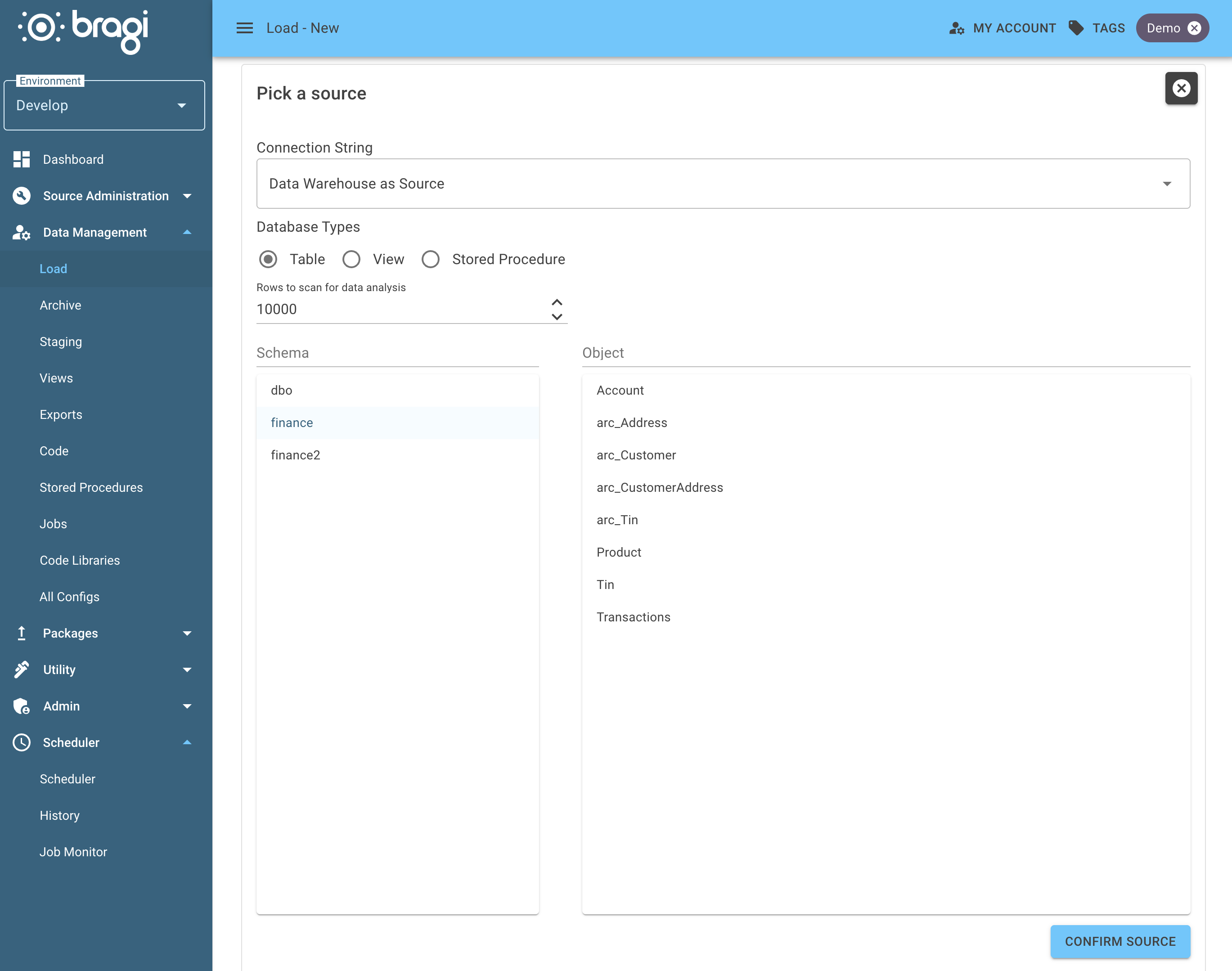
The first thing Bragi prompts you to do is to pick a source connection string.
Next, select the database type. There are three different database types:
Table
View
Stored Procedure
Set the rows to scan for data analysis and configure the schema and object.
Field | Description |
|---|---|
Rows to Scan for Data Types (default: 10,000) | This determines how many rows Bragi should look at to guess each column’s data type and size. A higher number gives better accuracy, especially for variable-length strings or mixed content. |
Schema | Database schema where the loaded table will be created. |
Object | Target table or view name that Bragi will create or load into within the selected schema. This defines the final destination for your imported data. |
Step 2: Configure the load
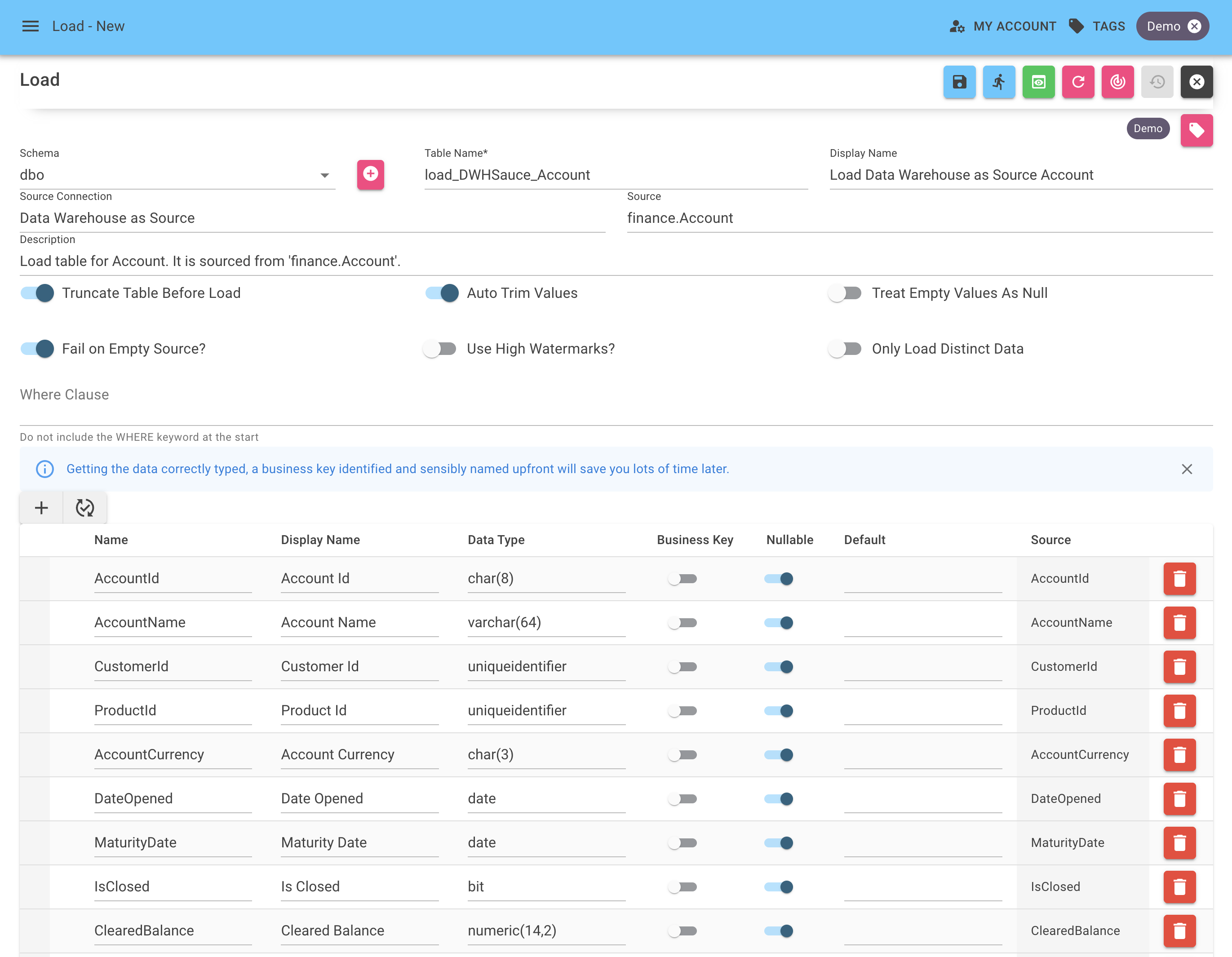
Specify the name and schema for the new load table and configure how it should be processed.
Field | Description |
|---|---|
Schema | Schema in the warehouse for the Load. You can create one using the plus arrow. |
Table Name | Name of the Load; this will be what it is called in the warehouse. |
Display Name | A more friendly name for the Load, used in Bragi. |
Description | A description of the Load's purpose, useful for when someone else needs to edit it later. Also worth noting why it is not a normal Load. |
Truncate Table Before Load | Clears the target table before inserting new rows. The default behaviour for most loads. This ensures you're working with fresh data. |
Auto Trim Values | Removes the whitespace from both ends of any strings. |
Treat Empty Values As Null | Treats empty strings as NULL in the load table itself. This saves storage space. |
Fail on Empty Source | Fails the load when the dataset is empty. Turn this on if an empty source dataset indicates an error. |
Use High Watermarks | Configures High Watermarks. |
Only Load Distinct Data | Skips duplicate rows during the load process. Handy for avoiding repeated inserts when source files are noisy or already de-duped upstream. |
Where Clause | Limits the data coming from the source. WHERE keyword is not required. As an example you could use |
Stored Procedure Parameters
When the database type is Stored Procedure, Bragi detects the procedure's parameters and passes a value for every one of them each time the Load runs. As well as a fixed value, you can use any of the placeholders as a parameter value.
Leaving a parameter value blank sends an empty string, not a NULL, so an int or date parameter will fail at execution time. Use {{Null}} when the parameter needs a real SQL NULL.
High Watermarks
High Watermarks improve performance when loading extremely large tables. It selects one or more columns and every time the Load executes, the process stores the last loaded value for that column within Bragi. The next time the Load runs, it will only import rows that are above the High Watermark columns.
You can override the default behaviour by providing a SELECT statement in place of Bragi storing and handling the previously loaded value. For example, if your load has an Archive associated with it, you could write a SELECT statement to find the latest archived value.
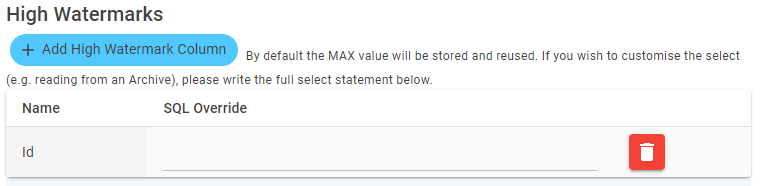
select top 1 Id from dbo.arc_SEEKER_BondInfo
Now that you’ve set up your SQL load, it is ready to be used for staging.