File Sources
A File Source in Bragi is a preconfigured folder path that can differ across environments.
When used in Load or Code configs, Bragi automatically selects the correct directory based on the active environment.
This lets you separate Develop, Test, and Production file locations.
Base File Source Settings
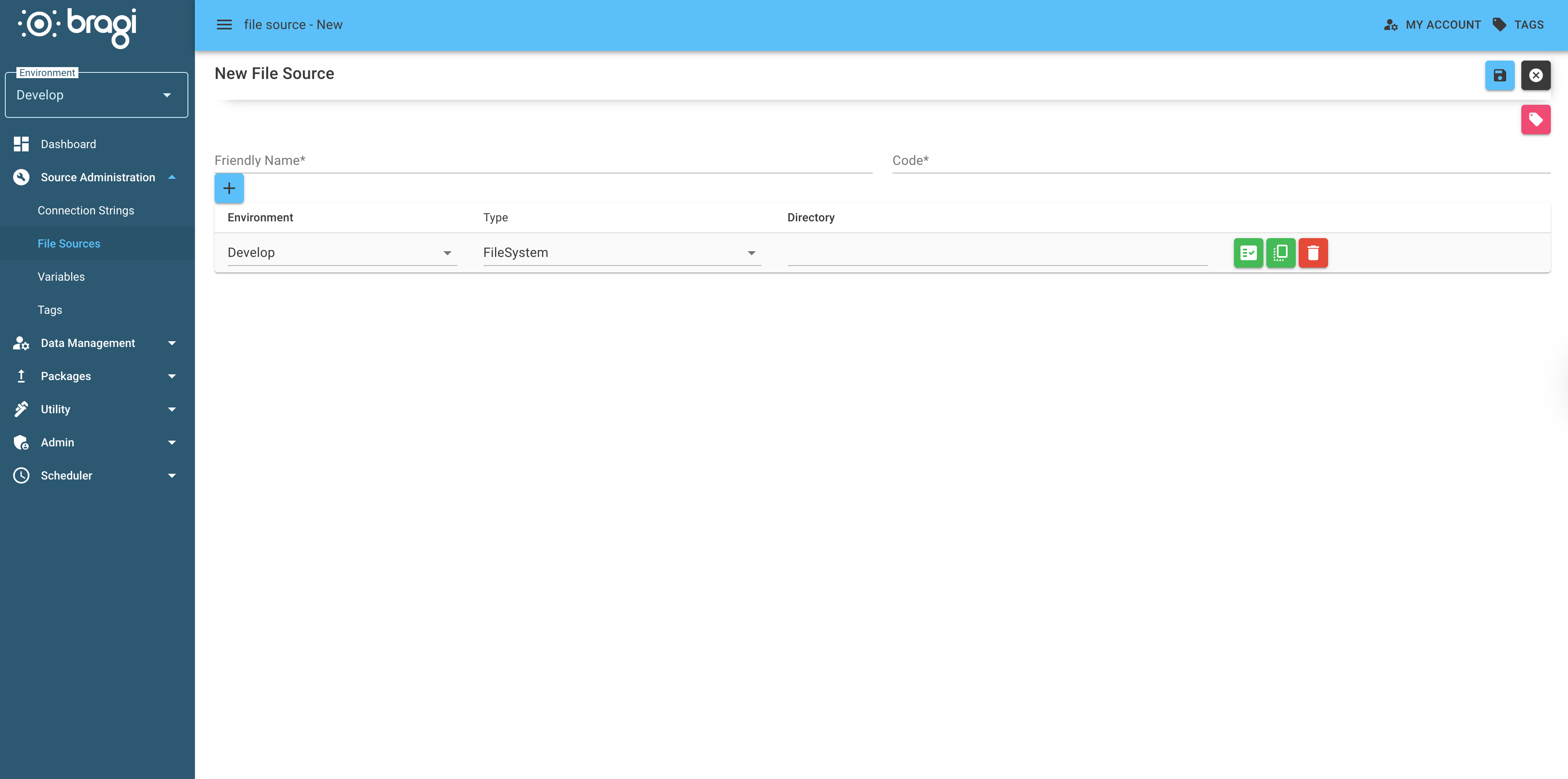
Field | Description |
|---|---|
Friendly Name | Descriptive name for the file source. |
Code | Short identifier. |
Per-Environment Settings
Typically, you define three File Sources, one for each environment (Develop, Test, Production):
Field | Description |
|---|---|
Environment Name | Target environment for this file path. |
Type | The storage type used for the file source (e.g. Local, Network Share, Azure Blob, Azure File Share, SharePoint). This determines how Bragi connects to the location. |
Directory | The actual folder path for the environment. For example: C:\Bragi\DevFiles\, /mnt/test/files/, or a folder within an Azure file share or SharePoint library. |
Azure File Shares
A File Source of type AzureFileShare reads and writes files in an Azure Files share - the shares listed under File shares (Data storage) on an Azure storage account. This is separate from Azure Blob Storage containers, which use the AzureBlobStorage type. Once configured it behaves like any other file source: point a Text / Excel load, a file export, or a Code config at it.
Field | Description |
|---|---|
Connection | The storage account connection string, from Security + networking > Access keys on the storage account. |
Share Name | The name of the file share. |
Directory | The folder path within the share. Leave blank for the share root. |
Unlike blob containers, file shares have real folders. Bragi creates any missing folders when it writes a file (for example an export or an archive location), but a load's source folder must already exist. File name masks are matched case-insensitively against the files directly in the folder; sub-folders are not searched unless the mask includes them (for example incoming/*.csv).
Use Test Access on the file source row to confirm Bragi can reach the share and folder before saving.
SharePoint Document Libraries
A File Source of type SharePoint reads and writes files in a SharePoint document library through the Microsoft Graph API. Once configured it behaves like any other file source: point a Text / Excel load, a file export, or a Code config at it.
Field | Description |
|---|---|
Site URL | The SharePoint site, for example |
Client Id | The application (client) id of the Azure AD app registration used to connect. |
Client Secret | The client secret for that app registration. |
Document Library | The library (drive) name. Leave blank to use the site's default document library. |
Directory | The folder path within the library. Leave blank for the library root. |
Use Test Access on the file source row to confirm Bragi can reach the library before saving.
Graph permissions
The app registration needs Microsoft Graph application permissions, granted by an administrator:
Scenario | Permission required |
|---|---|
Loading files, reading attachments for email, reading files from Code |
|
Exporting files, archiving or renaming a file after load, writing from Code |
|
A read-only grant still supports loads, but archiving or renaming the source file after load writes back to SharePoint and so needs the read/write permission. If you only have read access, point the load's archive location at a different file source (for example a local path, Azure Blob or Azure File Share).
Duplicating a File Source
If you need a new File Source that is similar to an existing one, you can duplicate it instead of recreating it from scratch.
On the File Sources list page, select the File Source you want to copy.
Click Duplicate from the action menu.
The edit page opens with a new draft pre-populated from the original, including:
All per-environment directories (path, type, and connection arguments)
All tag mappings
The Friendly Name and Code are suffixed with
Copy/_Copyso they don't clash with the original. Update them to something meaningful before saving - the name and code must be unique.Click Save to create the new File Source.