Roles
Roles are used to associate groups in Active Directory or Entra (Azure Active Directory) with specific permissions in Bragi’s Static Data Management module, such as viewing or editing particular tables.
Global Roles
Bragi has four predefined global roles:
Role Name | Grants access to Bragi? | Implicit access to all tables/groups? | Can edit (or propose edits) to any tables? | Can approve edits to any tables? |
|---|---|---|---|---|
UseApp | Yes | |||
Global Administrator | Yes | Yes | Yes | |
Global Editor | Yes | Yes | ||
Global Approver | Yes | Yes |
These global roles cannot currently be modified through the application UI; they are managed directly in the database.
Global Administrator
The Global Administrator role grants elevated permissions not covered by other roles, including:
Configuring and managing tables and groups
Setting up individual role assignments within Bragi (see Group Permissions below)
Editing core settings
Group Roles
In addition to global roles, you can grant specific permissions by creating Roles that map external groups (e.g., Active Directory groups) to friendly names within Bragi.
Creating, Editing, and Deleting Roles
Roles are managed on the Roles page in the Admin section of the navigation bar:
Use the New Role button to create a new Role.
Use the Edit button beside an existing Role to modify it.
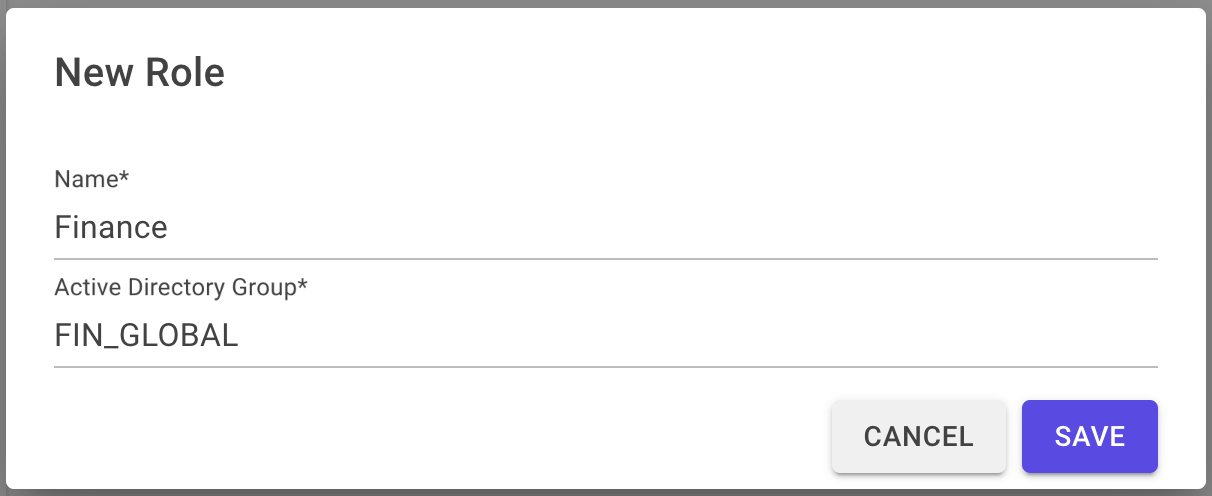
The Name field is for display purposes only, to distinguish Roles inside Bragi.
The Active Directory Group field must exactly match the external AD group name (e.g.,
FIN_GLOBAL). Fully qualified names likeTENANT\FIN_GLOBALare not supported.
Deleting Roles
Roles can be deleted from the Roles page only if they aren’t assigned permissions to any group. To delete an in-use role, remove its group assignments first.
Assigning Roles
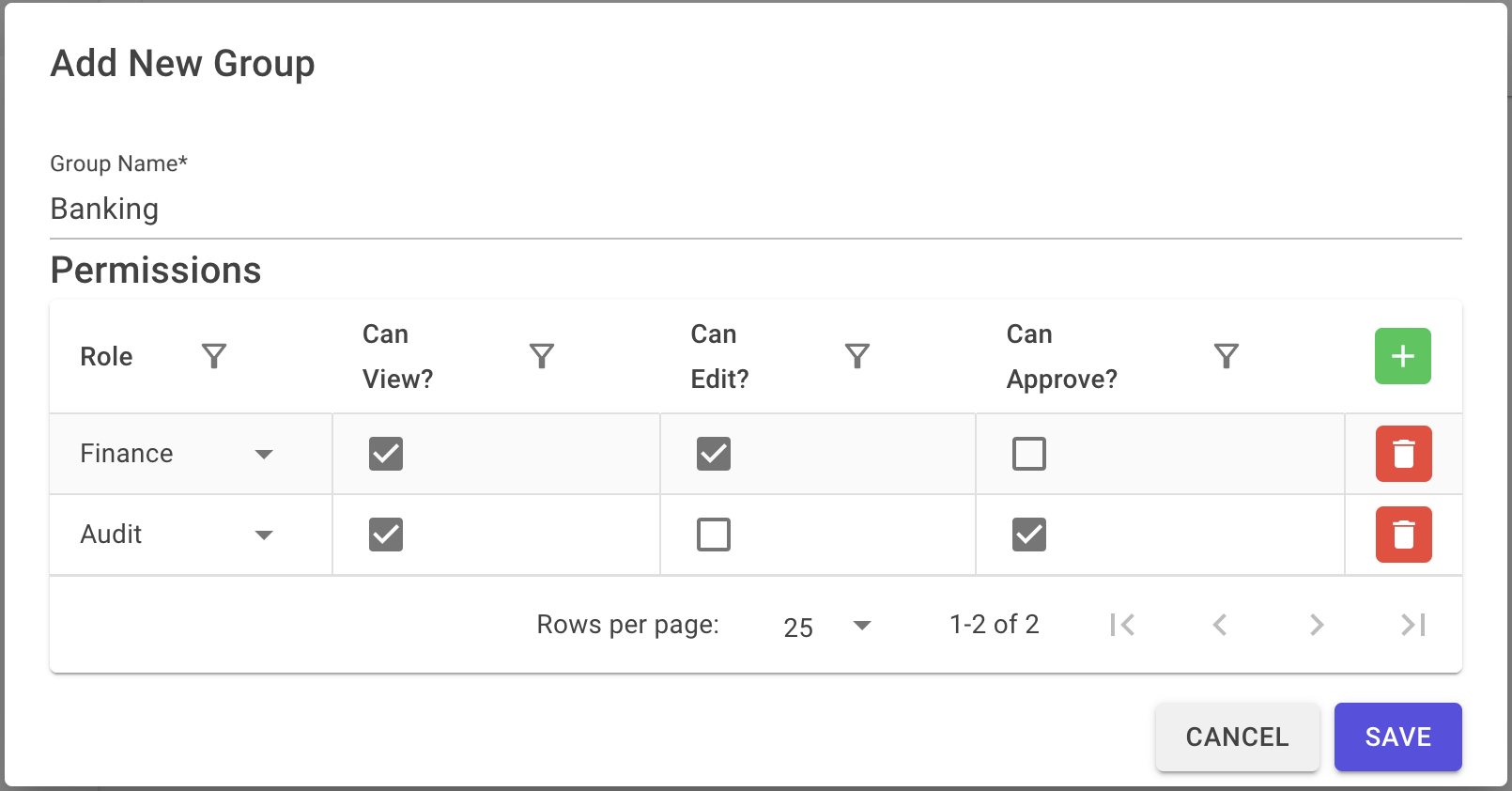
You assign Roles to groups via the group edit modal. Clicking Add in the Permissions section lets you specify:
The Role to assign
The permissions granted to that Role for the group
Permission Name | Grants |
|---|---|
Can View? | View access to tables within this group |
Can Edit? | Ability to make or propose edits to tables in this group |
Can Approve? | Ability to approve proposed edits to tables in this group |
After configuring, permissions apply to all tables in the group following these rules.
Multiple Roles
If a user belongs to multiple roles with different permissions, their effective permissions are additive. They gain the union of those permissions across all their roles.
For example, if a user belongs to both Finance (View and Edit) and Audit (View and Approve):
They can make and propose edits thanks to Finance
They can approve edits thanks to Audit
Note: Per Four-Eyes policies, users cannot approve their own edits.
Default Behaviour
If a group has no roles assigned, all users in the UseApp global role can view that group by default.
Edit permissions are reserved for Global Editors.
Approval permissions are reserved for Global Approvers.
Once a group has any assigned Role, view access is limited to those explicitly granted permission and to Global Administrators, Editors, and Approvers.
This Roles system ensures flexible, fine-grained permission control aligned with your organisation’s external identity groups.