Load Data Using the Code Config
A Code Load lets you write C# directly in Bragi to define custom data loading logic. Bragi compiles and runs the code inside your pipeline, just like any other Load.
Step 1: Create a Code Config
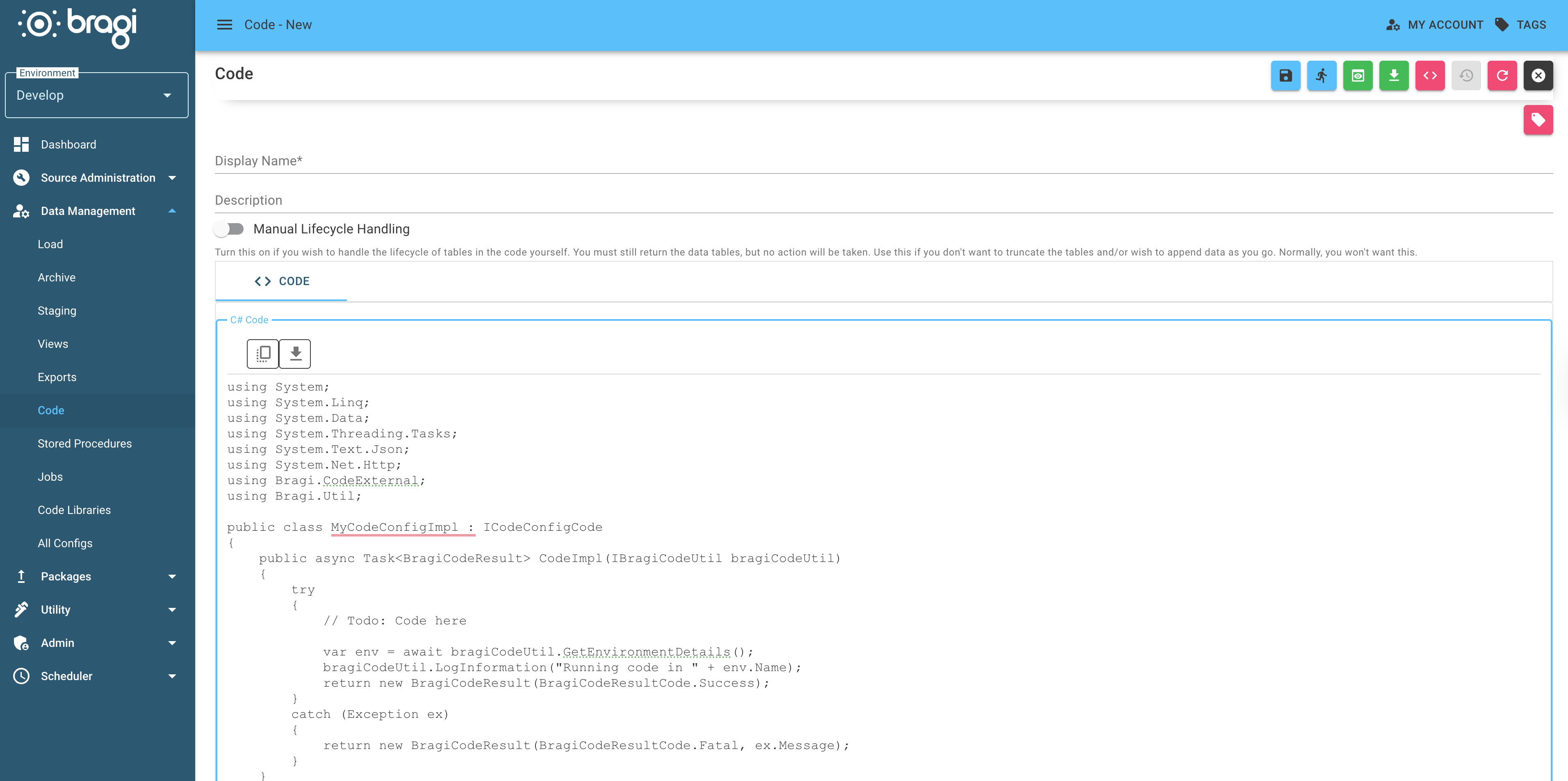
In the Bragi interface, go to Code and click + Add.
Field | Description |
|---|---|
Display Name | A more friendly name for the Code, used in Bragi. |
Description | A description of the Code purpose, useful for when someone else needs to edit it later. Also worth noting why it is not a normal Load. |
Manual Lifecycle Handling | Toggle if you wish to handle the lifecycle of tables in the code yourself. Use this if you don't want to truncate the tables and/or wish to append data as you go. Normally, you won't want this. |
You must still return the data tables, but no action will be taken.
Step 2: Return one or More Objects
Objects will be written to your warehouse just like a normal load.
Bragi handles:
Code Config versions and dependency management
Environment variables (like connection strings)
Promotion between environments
By default, Bragi truncates and reloads the destination table for each run. If you want more control (e.g., appending or custom lifecycle logic), you can turn on Manual Lifecycle Handling.
Visit the Examples section to learn more about the application of Code Configs.