Jobs
Jobs let you schedule when Bragi Configs should run. In this section, you configure the CRON schedule, control the order of Config execution, set dependencies on other Jobs, and more.
To add Configs to a Job, use the search card at the bottom of the Job Edit page to select the Configs you want included. These appear under the Scheduled Tasks tab.
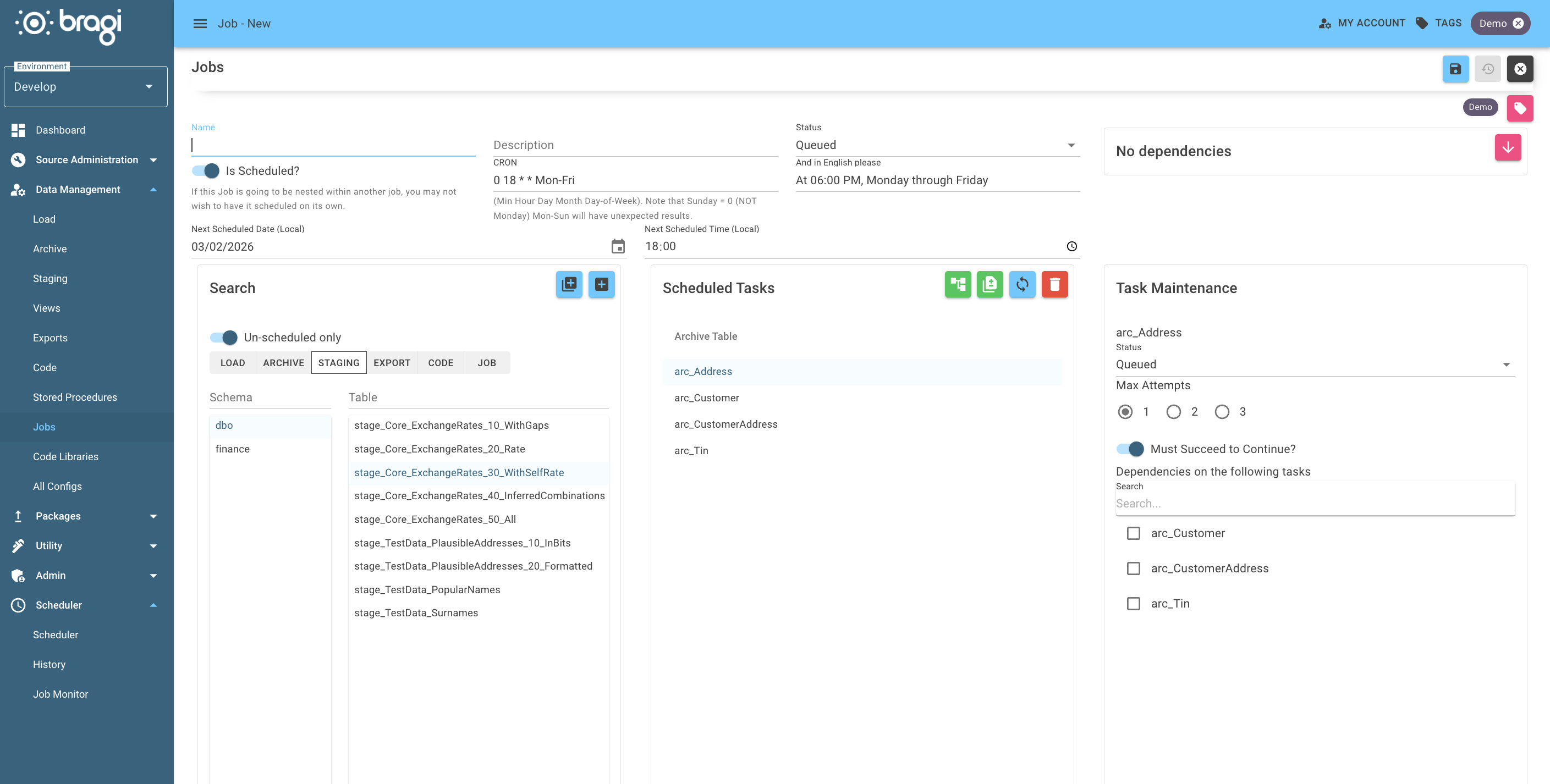
Field | Description |
|---|---|
Name | A descriptive name for the Job (e.g., |
Description | A summary to clarify the Job’s purpose for other users. |
Status | Job state: |
Is Scheduled? | If |
CRON | Defines when the Job will run (see the CRON section below). |
Bragi automatically calculates task dependencies, but you can also manually set dependencies in the Task Maintenance panel.
To set dependencies, click the arrow next to No dependencies. When you select a dependent Job, you can specify whether it must succeed before this Job runs and how recent the last successful run should be.
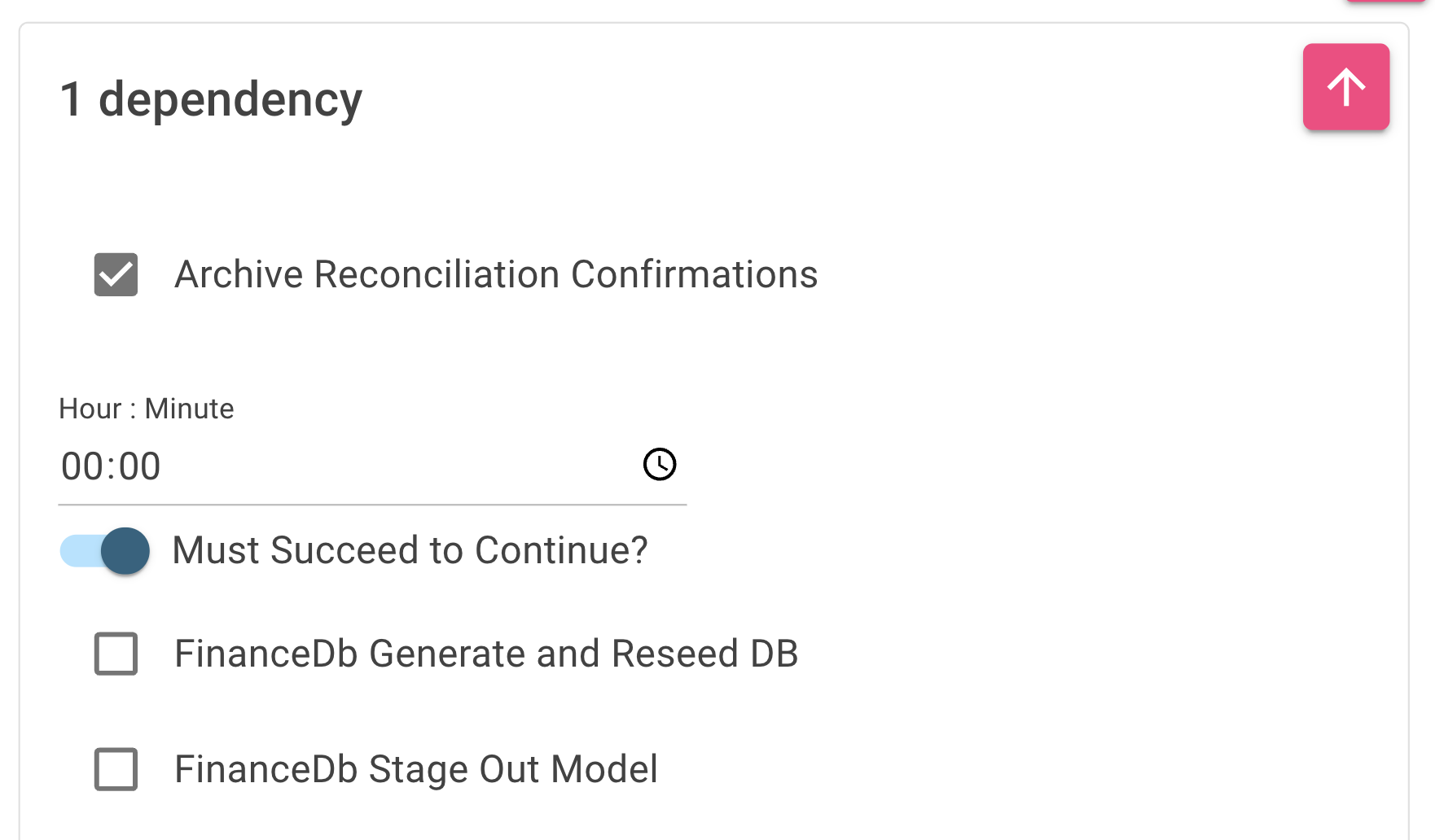
How Tasks Are Dispatched at Run Time
When a Job runs, each task starts as soon as all of its dependencies have completed and a free slot is available. Tasks with no dependencies start immediately, and a task never waits on tasks it doesn't depend on, so the Job's total run time is governed by its longest dependency chain.
The number of tasks running at the same time is capped by the Job Task Parallelism setting (see Settings). A nested Job occupies a single slot in its parent Job while its own tasks run under the same parallelism cap.
If a task fails and is marked Must Succeed, tasks that depend on it will not run and are marked as failed dependencies.
A Config only ever runs once at a time in an Environment. If a task's Config is already running in another Job (or a Run Now of that Config is in progress), the task waits until that run finishes and then starts. Its output reads Waiting for ... to finish running in another job instance while it waits. This applies to scheduled Jobs, nested Jobs and Run Now alike, so the same nested Job cannot run under two parent Jobs at once either. A waiting task keeps its slot, and aborting the Job stops the wait. It is never marked as failed just for waiting.
A task set to Hold is left out of the run altogether. Tasks that depend on it do not wait for it - they run as soon as their remaining dependencies have completed. This lets you skip a step (for example a Load whose data you have supplied by other means) and still run the rest of the Job.
Behaviour of Missed Runs and Next Run Time Display
If a Job misses its scheduled run due to unmet dependencies, Bragi shows the Job’s next run time as a timestamp in the past, reflecting when the run should have occurred. This can be surprising at first glance.
This behaviour means the Job didn’t run when expected, usually because a dependency wasn’t satisfied in time. Understanding this helps avoid misinterpreting the schedule during monitoring.
CRON Scheduling
Bragi uses the well-known CRON utility to schedule Jobs.
A CRON expression has five fields, in order:
Minute
Hour
Day of the Month
Month
Day of the Week
CRON Examples
Expression | Description |
|---|---|
| Runs every five minutes |
| Runs every hour at 15 minutes past the hour |
| Runs every three hours |
| Runs daily at 1:00 AM |
| Runs Monday through Friday at 8:00 AM |
| Runs at 5:00 PM on the 2nd day of each month |
| Runs at 2:00 AM on the 1st day every 6th month |