Tables
The Tables area lets you create, configure, and manage SQL tables within Bragi’s Static Data Management module. You can create new tables from Excel files or manage existing SQL tables.
Add Table
Tables - SQL
Any tables created directly in the Bragi database automatically appear on the Table Configuration page.
Tables - Excel File
New tables can be created from Excel spreadsheets by using the “Infer New Table from Excel” button on the Table Configuration page.
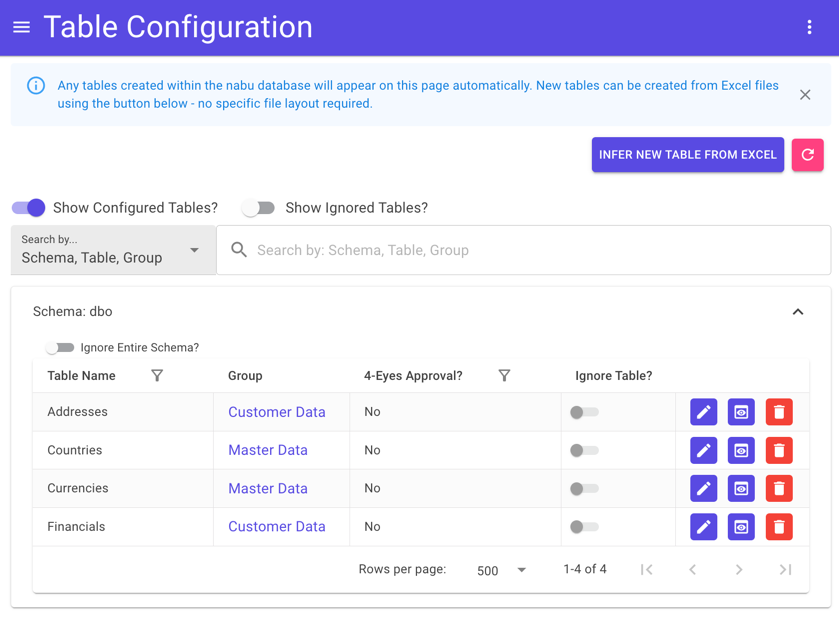
To create a table from an Excel file:
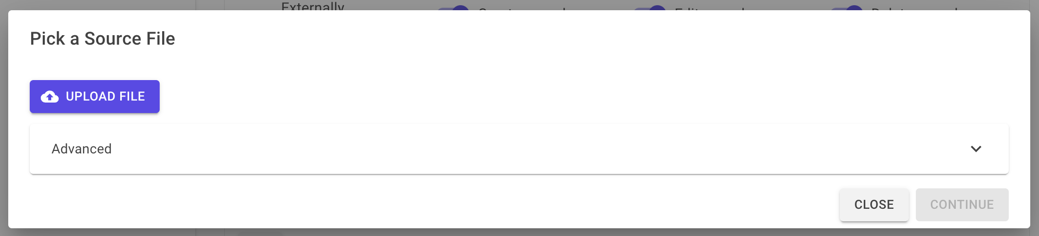
Select the source Excel file using the “Upload File” button.
Adjust settings if needed using the Advanced menu.
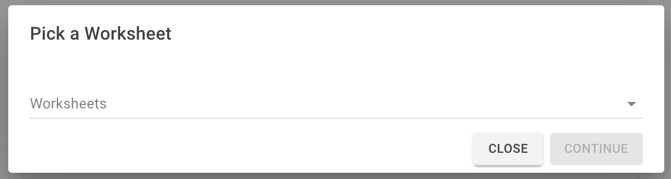
If the Excel file contains multiple worksheets, a dropdown will appear, allowing you to choose the worksheet to base the table on.
Before creating the table, you can review and edit columns, including names, data types, keys, and nullability.
The Table Actions area lets you select allowed actions: create, edit, and delete.
Marking a table as externally managed disables all actions—changes must then be made outside of Bragi.
If you want the table added immediately to the Dashboard, enable the “Add to Dashboard” toggle (see Add Table to Dashboard below for details).
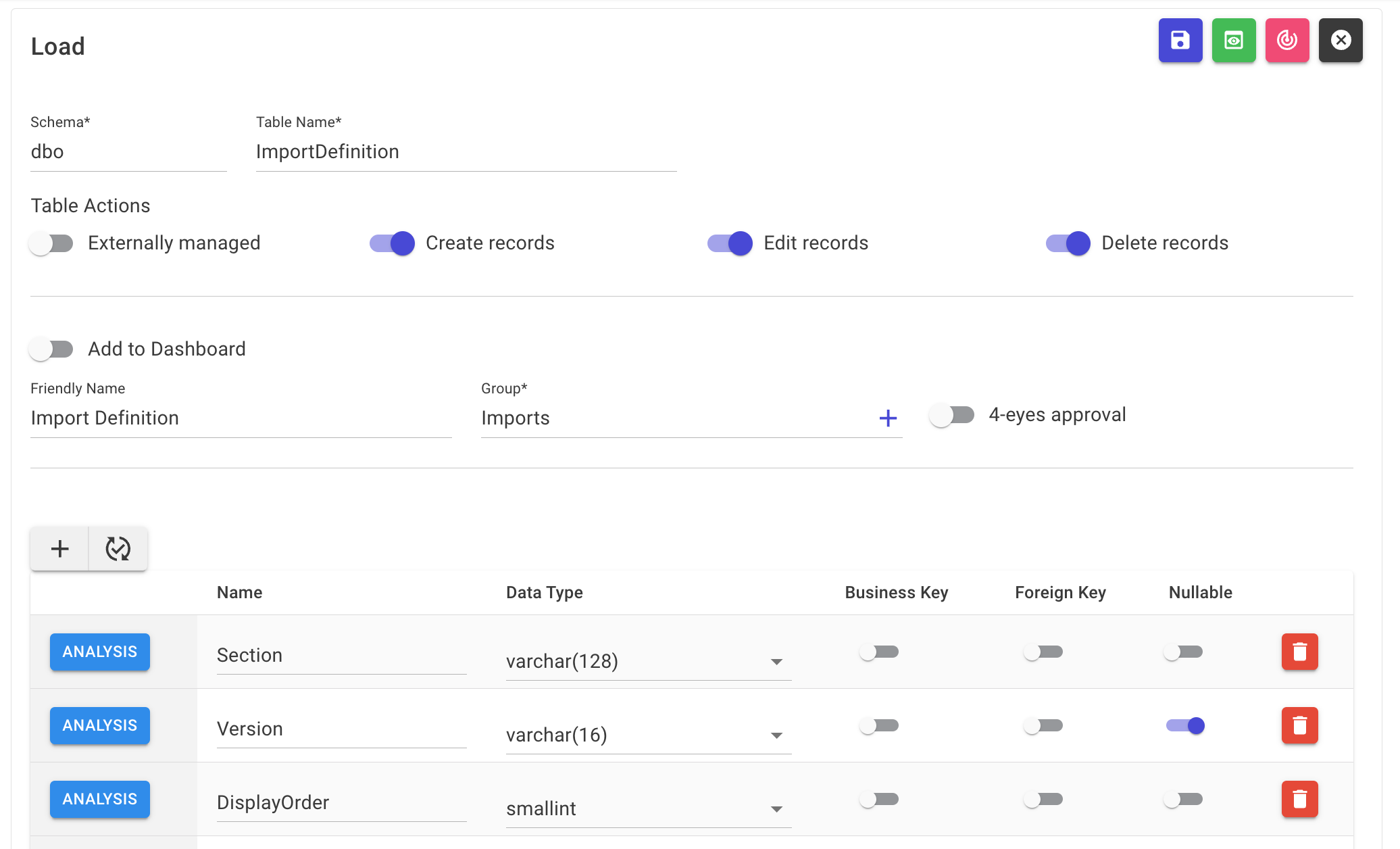
Once you’ve configured everything, save your changes using the “Save” button:
Edit Table
On the Table Configuration page, click Edit for the table you want to modify:
This opens the Edit Table page:
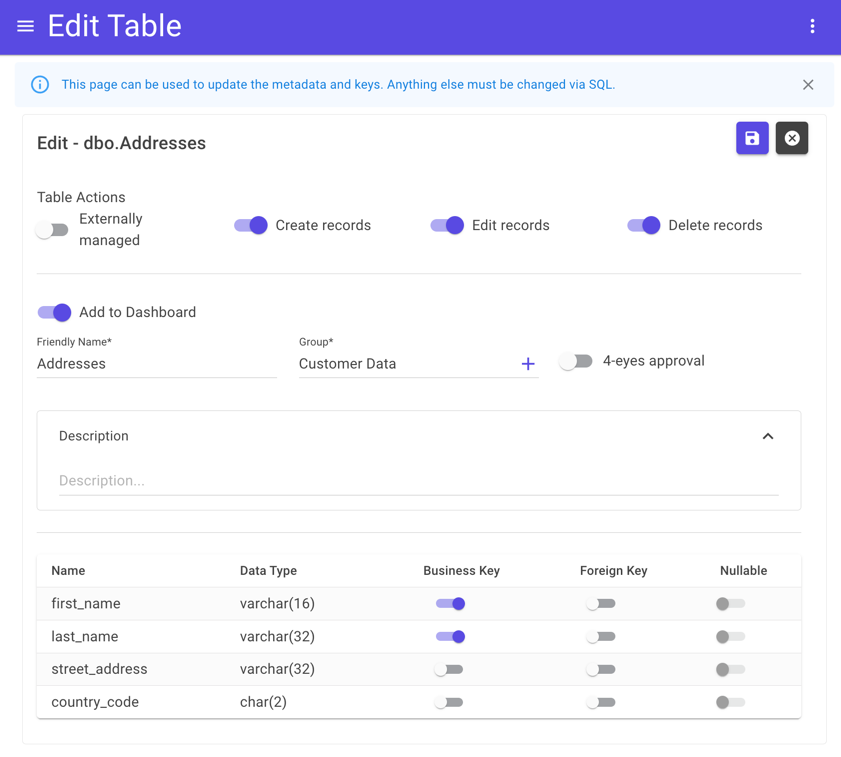
Here you can:
Alter table actions (externally managed, create, edit, delete)
Add or remove the table from the Dashboard
Edit the friendly name and group assignment
Enable or disable Four-Eyes approval
Create, edit, and delete foreign keys
Delete Table
You can permanently delete a table using the Delete button on the Table Configuration page:
A confirmation modal will appear, asking you to enter the table name as a safety check.
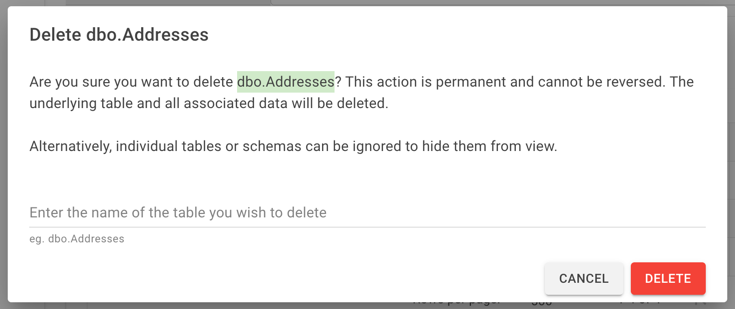
Warning: Deletion permanently drops the table from the database and cannot be undone. Double-check the table name before confirming.
Ignore Table
If your Bragi database contains tables you don’t want to manage inside the Static Data Management module, these can be ignored, which removes them from view.
Use the toggles in the "Ignore Table?" column on the Table Configuration page:
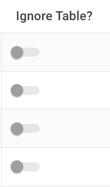
To see ignored tables (for example, to un-ignore), enable the “Show Ignored Tables?” toggle:

You can ignore entire schemas using the “Ignore Entire Schema?” toggle. This will ignore all tables within that schema, including any new tables added later.
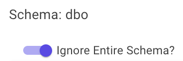
If needed, individual tables within an ignored schema can be specifically un-ignored:

Note: Ignored tables cannot be added to the Dashboard, as Bragi treats them as if they do not exist.
Add Table to Dashboard
All tables appear in the Table Configuration page, but only those added to the Dashboard appear on the Dashboard page.
To add a table to the Dashboard:
Click Edit on the Table Configuration page for the desired table:
In the Edit Table page, give the table a friendly name, assign it to a group, and toggle the “Add to Dashboard” option.
Click Save.
View Table
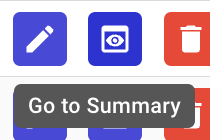
On the Dashboard, use the “Go to Summary” button on any table card to view its data:
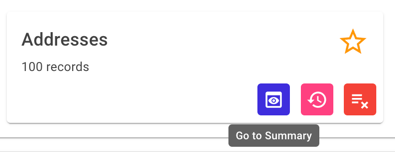
The Summary page lists all active rows for the table. Here you can:
Edit, duplicate, or delete rows (subject to Table Action permissions)
Review rows if Four-Eyes is enabled
Add new rows
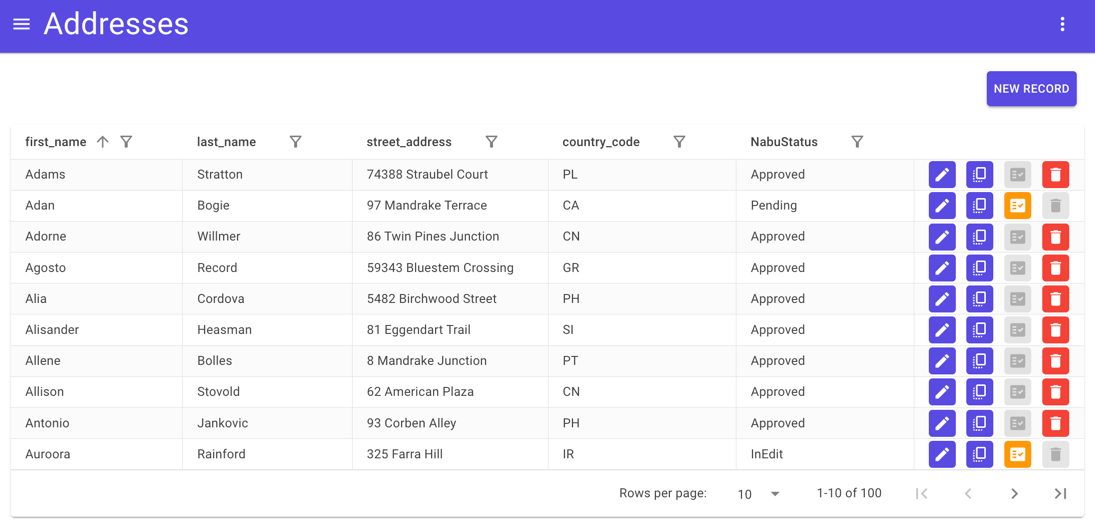
Alternatively, you can access the Summary page via the “Go to Summary” button on the Table Configuration page:
Edit Row
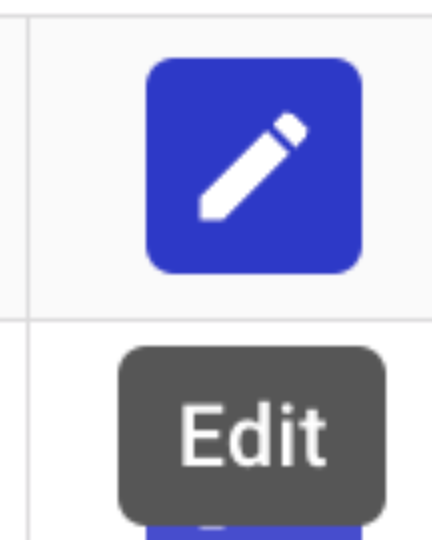
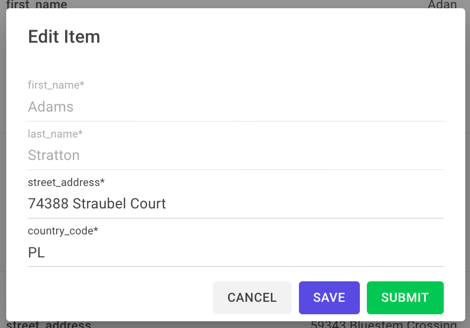
Rows are edited using the Edit button:
If Four-Eyes approval is disabled, changes are applied immediately upon saving.
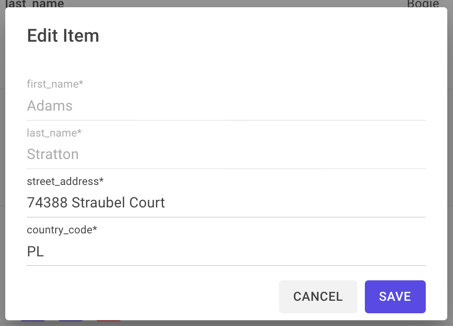
If Four-Eyes is enabled, edits enter an approval workflow:
The row status changes to In Edit while the change is being made.
When submitted, it moves to Pending for review by a different user.
Once approved, changes are applied to the database.
Duplicate Row
Use the Duplicate button to copy an existing row:
This works like editing, except a new row is created. You must update the business key to a unique value before saving.
Add New Row
New rows can be added with the New Record button:
The form will be blank and ready for new data entry.
Delete Row
Rows can be deleted using the Delete button:
For Four-Eyes enabled tables, deletions must be approved by another user.
Four-Eyes Review
When Four-Eyes is active, any submitted changes require approval by a different user via the Review button:
The review modal shows pending changes and allows approvers to approve, decline, or add comments:
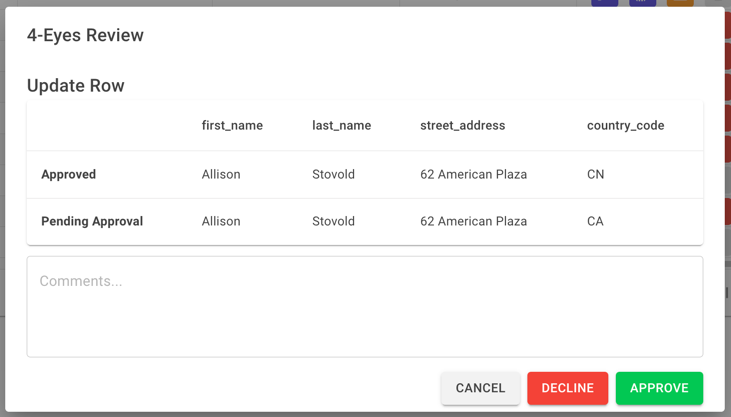
Users cannot approve their own changes but may decline them.
Four-Eyes Statuses
On the Summary page, you may see rows labelled with these statuses in the NabuStatus column:
Status | Description |
|---|---|
In Edit | Changes are made but not yet submitted for review. |
Pending | Changes have been submitted and await approval or declination by another user. |
Approved | Changes have been approved; this is the active version shown on the Summary page. |
Declined | Changes were rejected and these versions are not shown; the last approved version remains visible. |
Deleted | The row has been approved for deletion and is no longer displayed; the last approved version remains visible. |
To learn more about editing and submitting rows, see Edit Row.