Load Text / Excel File
Bragi lets you load data from a file into your warehouse.
You can either:
Upload a file manually, or
Reference a file path using a UNC-supported path, provided Bragi has permission to access it.
For structured sources like databases, it infers data types, keys, and constraints.
For less structured sources, such as CSV files, Bragi:
Identifies the range of values for each field.
Highlights anomalies like null, blank, and whitespace-only values.
Determines the number of unique values, smallest, and largest values.
Identifies duplicate values.
Selects the most appropriate data type for the data.
Based on this analysis, Bragi suggests an import table structure that you can review and modify.
File Analysis Settings
These options control how Bragi samples and interprets your data before it’s loaded.
Field | Description |
|---|---|
Rows to Scan for Data Types (default: 10,000) | Determines how many rows Bragi should look at to estimate each column’s data type and size. A higher number gives better accuracy, especially for variable-length strings or mixed content. |
Fixed Width File | Enable this if your file uses fixed-width formatting (no delimiters like commas or tabs). Bragi will use predefined column widths instead of splitting by a character. Great for older systems or mainframe exports. |
Treat Empty Values as NULL | Switch this on to convert empty strings (e.g. "") into NULLs. Useful for reducing storage and avoiding noise in your dataset. |
Treat “NULL” Values as NULL | If your file contains the literal string "NULL" to represent missing values, this will convert those to proper database NULLs. |
Has Column Headers | Turn this on if the first row of your file contains field names. Bragi will use those to automatically map columns. If headers are missing, columns are auto-named using their data type and position (e.g. Int_1, Varchar_2). |
Only Load Distinct Data | Skips duplicate rows during the load process. Handy for avoiding repeated inserts when source files are noisy or already de-duped upstream. |
Ignore Leading Rows | If the top of your file includes non-data lines (e.g. notes, timestamps, metadata), this lets you skip them. |
Ignore trailing rows | Similar to above, but for the end of the file. Skip totals, footers, or closing comments that aren’t part of your dataset. |
Click Continue to move to table setup.
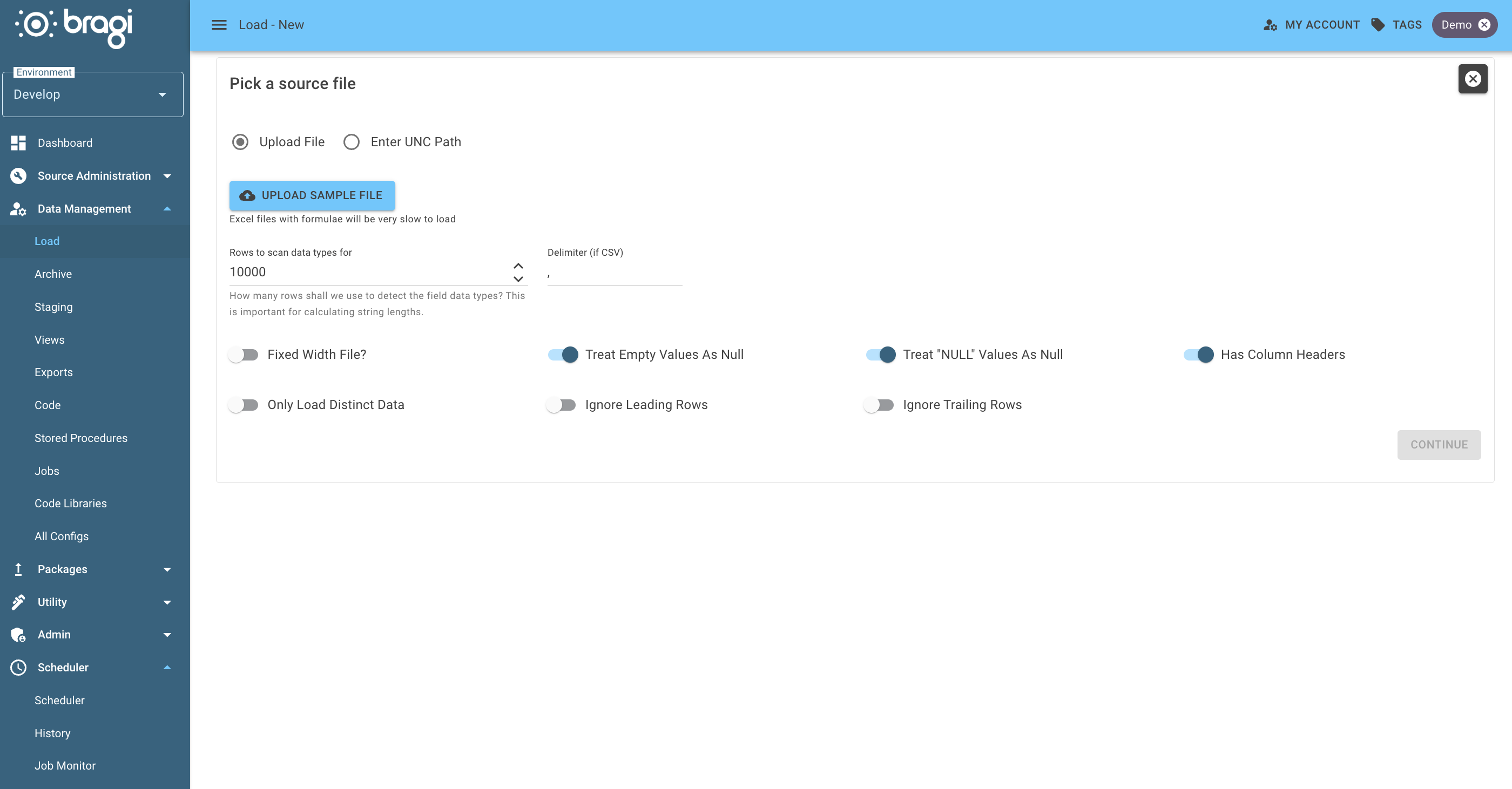
Table Configuration
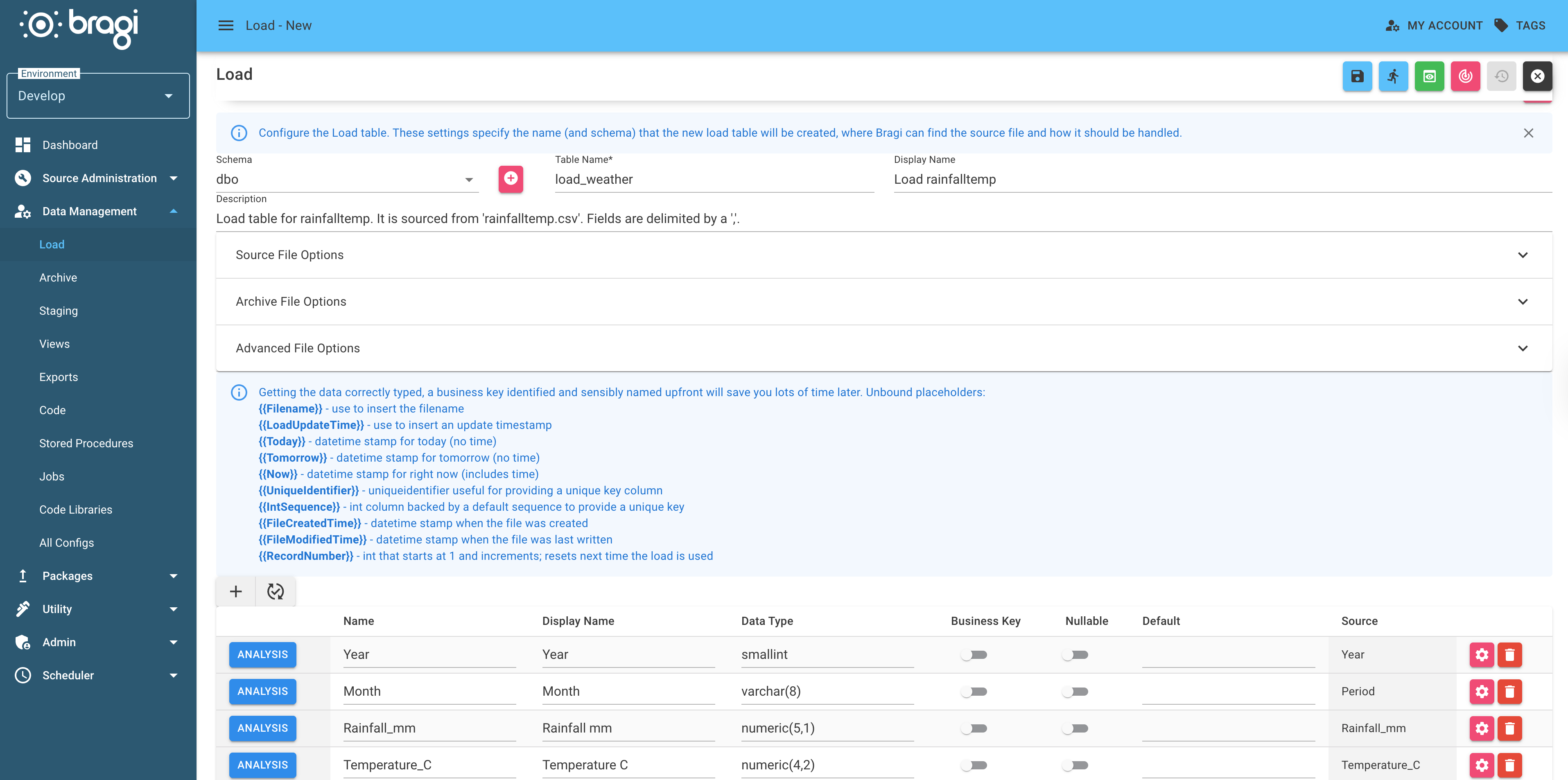
Define how and where the data will be stored in Bragi:
Field | Description |
|---|---|
Schema | Schema the table belongs to. |
Table Name | The actual name of the table in the database. |
Display Name | A more friendly name used inside Bragi. |
Description | Notes for future you (or someone else) - especially helpful if this load isn’t a typical one. |
Read the best practises for naming configs for guidance on consistent and clear naming formats for configs.
Source File Options
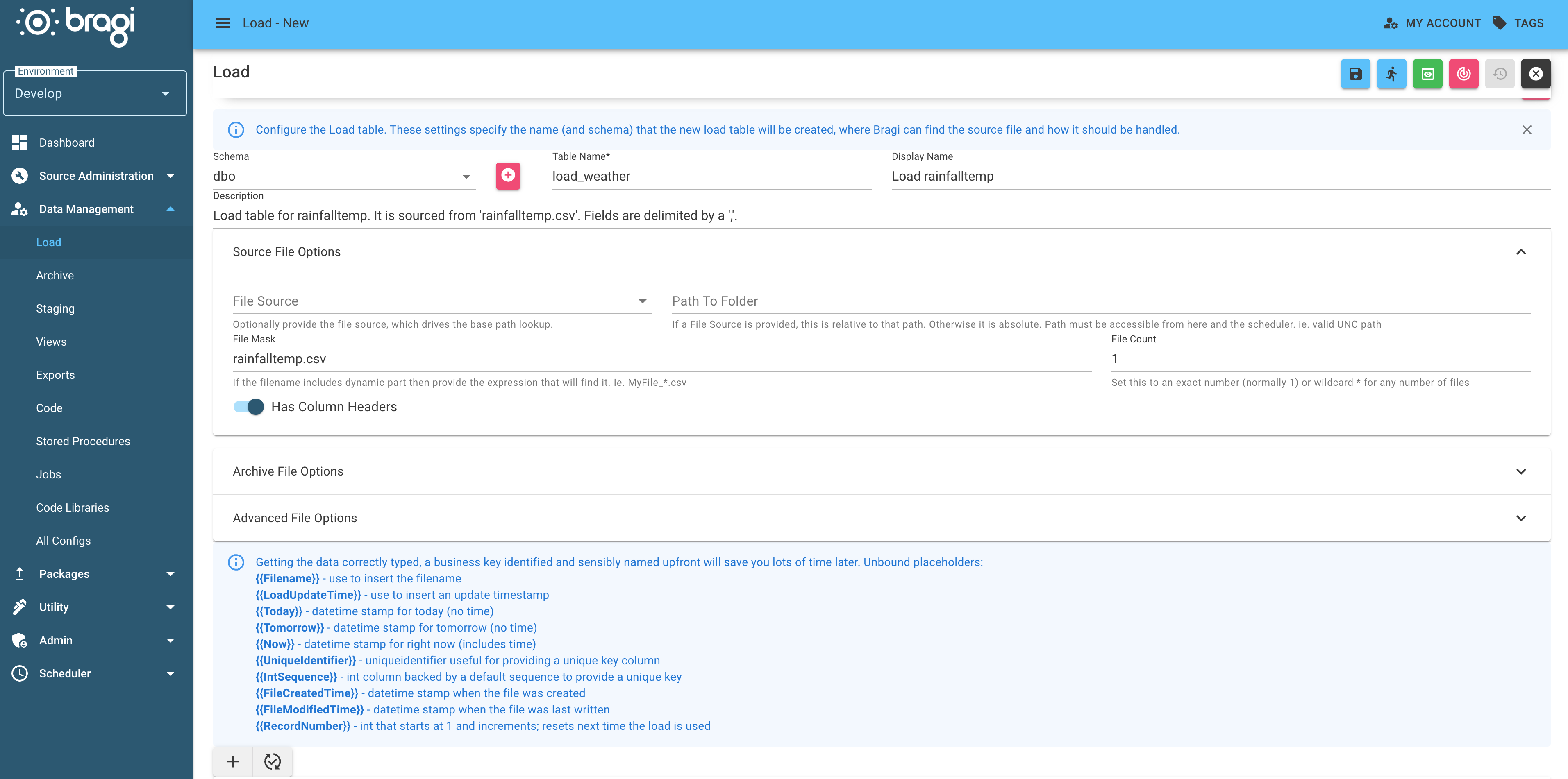
File Sources are preconfigured folder locations that can vary by environment.
By using a File Source instead of hard-coding paths, Bragi automatically picks the correct folder based on the environment the load is running in.
Field | Description |
|---|---|
File Source | Choose from a preconfigured source folder. |
Path to Folder | Acts as a base or sub-path within the selected File Source. |
File Mask | Use wildcards to match filenames (e.g. Report_*.csv). |
File Count | Expected number of files (use if the count varies). |
Has Columnn Headers | Lets Bragi know whether headers are present. |
Archive File Options
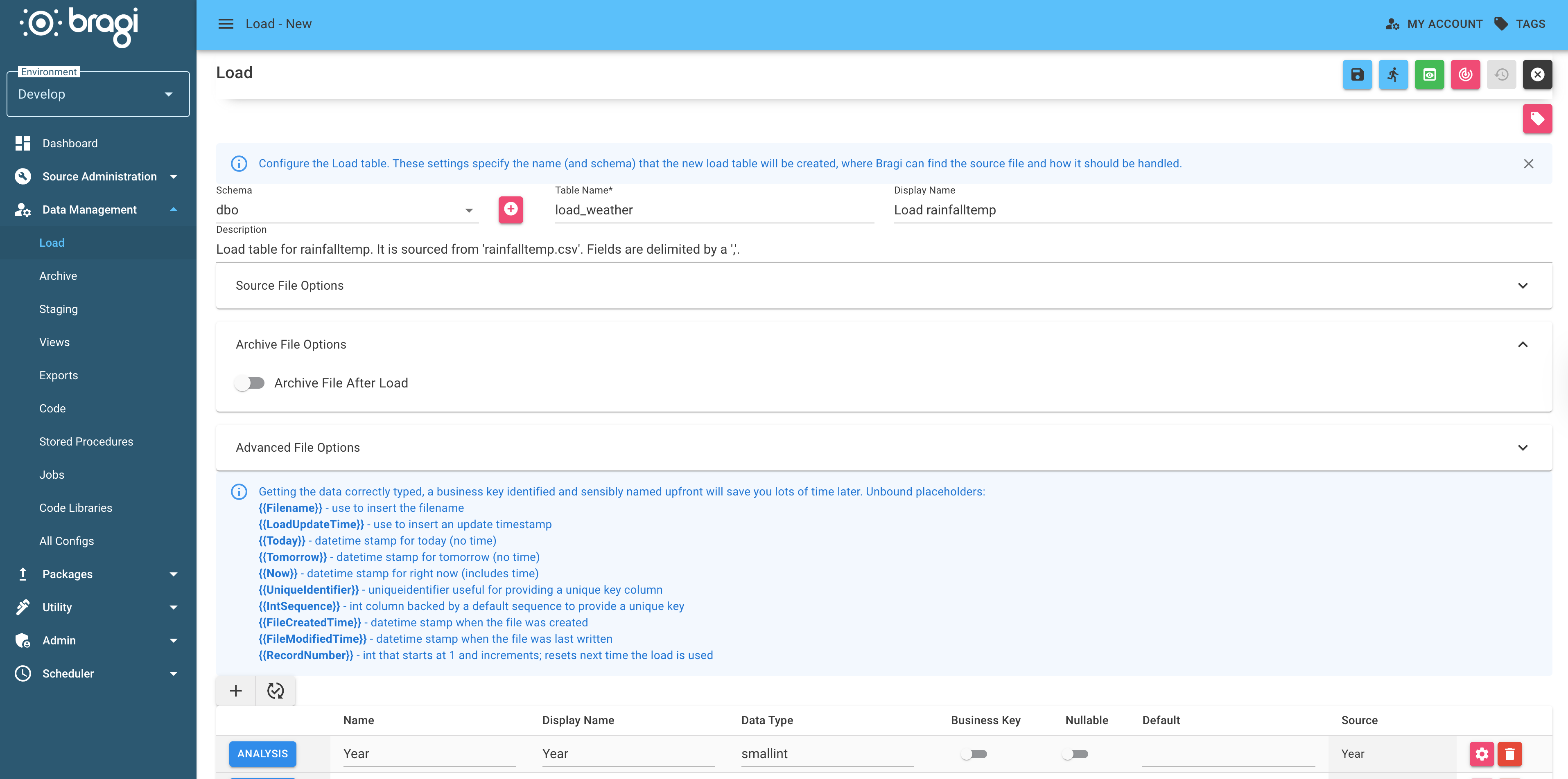
Automatically move processed files to another folder for safekeeping and a historical data record.
Field | Description |
|---|---|
Archive File After Load | Moves file once loading is complete. |
Archive on Empty Input File | Move the file even if it had no usable data. |
File Source / Path to Folder | Where to send archived files. |
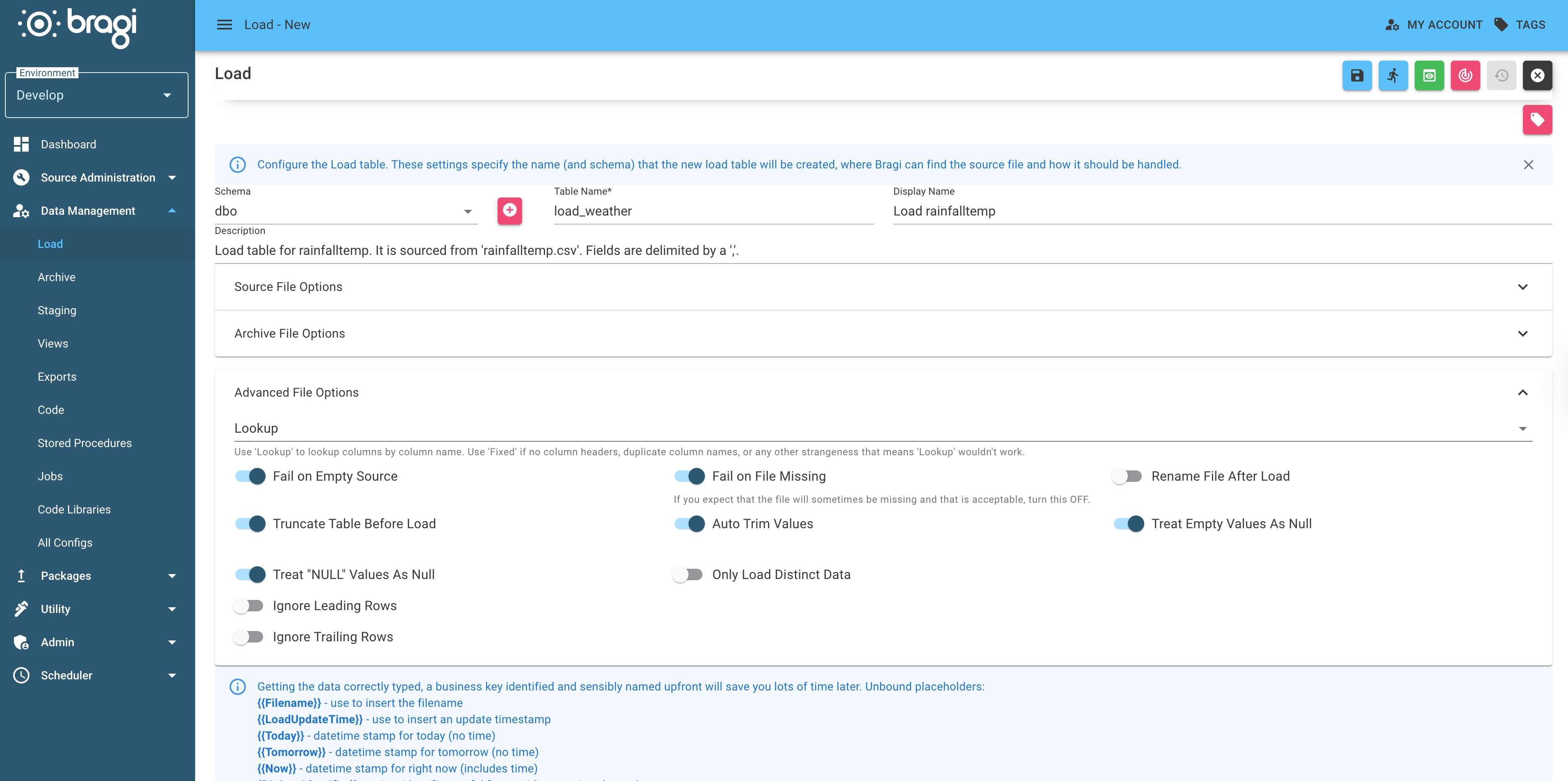
Advanced File Options
These options control how Bragi handles columns and load behaviour behind the scenes:
Field | Description |
|---|---|
Delimiter | The character used to separate columns in the file (e.g. comma, tab, pipe). Defaults to comma; set it before picking the file (or change it here and use Redo Analysis to re-introspect). Use |
Lookup (default) | Columns matched by name. Best for files with headers or columns that may change order. |
Fixed | Columns matched strictly by position. Only use this when Lookup fails or column order is guaranteed. |
Fail on Empty Source | Bragi will throw an error if the file is empty. Use this if empty files are unexpected and should halt the process. |
Fail on Missing | Stops the load if the number of files doesn’t match the expected |
Rename File After Load | Adds a |
Truncate Table Before Load | Clears the target table before inserting new rows. The default behaviour for most loads. |
Auto Trim Values | Strips leading and trailing whitespace from string fields. Usually a good idea unless whitespace has meaning in your data. |
Placeholders and Inspect Columns
After Bragi analyses the file, you’ll be able to review the inferred column types and relationships. You can also use unbound placeholders in your data for dynamic values:
Placeholder | Description |
|---|---|
| File name of the source |
| Timestamp of the load |
| Current date |
| Tomorrow’s date |
| Current date and time |
| Random GUID |
| Auto-incremented integer |
| File creation timestamp |
| File modification timestamp |
| Incremental row number |
| A SQL NULL, whatever the data type |
To add a placeholder, click + to add a column, and insert the placeholder in Default.