How to: Set Up Bragi for the First Time
When you first launch Bragi, you’ll likely see a message like this:
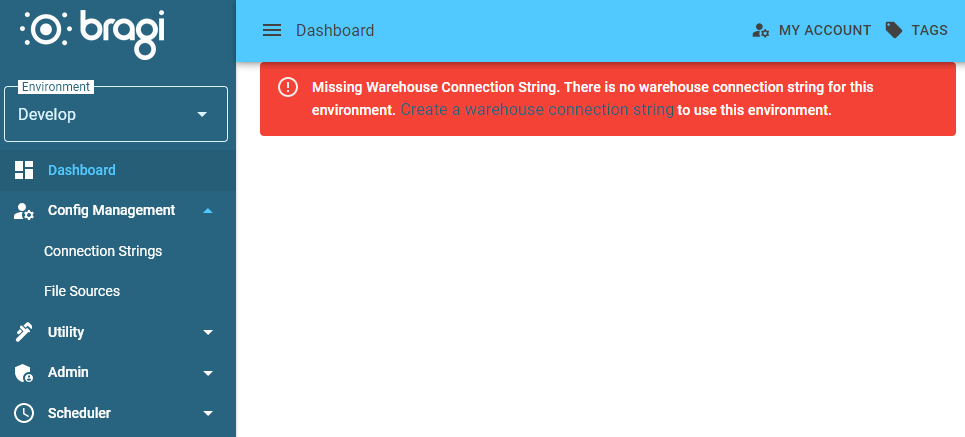
This message means Bragi needs a Warehouse Connection String configured before it can connect to your data warehouse.
Initial Setup Steps
Open the left-hand navigation panel and click Connection Strings.
This screen will be empty except for a list area and an Add button. Click Add.
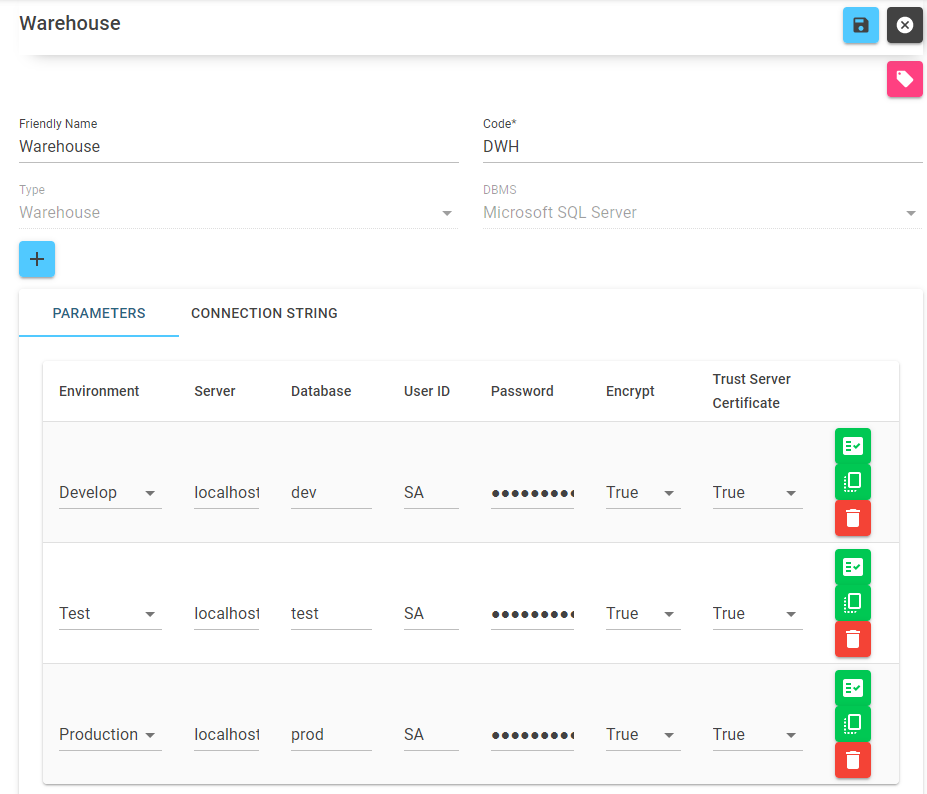
Assign a clear name for the connection string.
Warehouseis a good choice.Provide an identifying code, such as
DWH.Set the Type to
Warehouse.The DBMS field is currently fixed to Microsoft SQL Server and can’t be changed.
Click the + button to add a new row at the bottom.
Set the Environment to
Develop. Then either fill in the connection parameters manually or switch to the Connection String tab to paste the full string directly.Repeat step 7 and 8 for the
TestandProductionenvironments.Once all environments are set, click Save in the upper right corner to save your connection string.
Bragi is now connected and ready to use!
With this minimal setup, Bragi can start loading, transforming, and managing your data pipeline workflows.