Getting Started: Managing Static Data
This step-by-step guide walks you through uploading your first table and interacting with data inside Bragi’s Static Data Management module.
Step 1: Upload a Table
When you first launch Bragi, the Dashboard will display with no configured tables.

Accessing Table Configuration
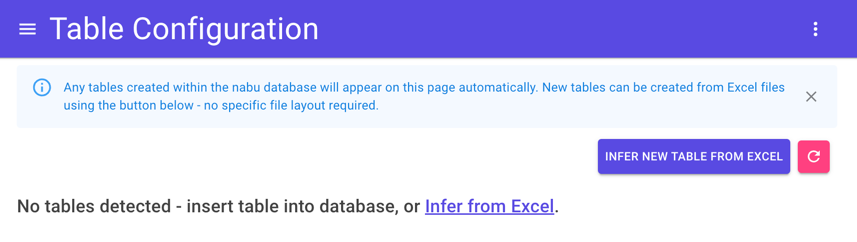
Admin users can add, edit, and configure tables via the Table Configuration page, accessible from the navigation bar or the link provided on the Dashboard.
Creating a Table from Excel
To create a new table from Excel:
Click the “Infer from Excel” link or the “Infer New Table from Excel” button.

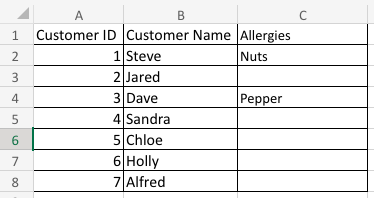
In the Pick a Source File modal, click Upload File and select your Excel file (e.g.,
CustomerData.xlsxcontaining Customer Data).
You may optionally configure advanced upload options; otherwise, click Continue.
If your Excel file contains multiple sheets, select the worksheet to import.

Configuring Your Table
On the next screen, you’ll see the inferred columns. It shows names, data types, keys, and nullability.
Review all columns carefully to ensure correctness.
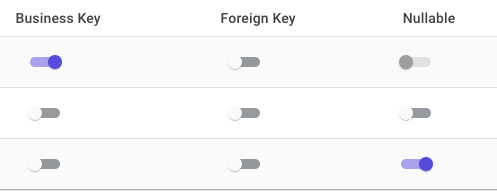
Set the Business Key (primary key) for your table and mark nullable columns as needed to prevent errors.
In this example, CustomerID is the business key, and the Allergies column is marked nullable.
Addding to Dashboard and Grouping
Enable Add to Dashboard to show the table on your Dashboard immediately.
Assign a Friendly Name (display name) and a Group (for organisation).
If no groups exist, create a new group, e.g., Customers.
Optionally enable Four-Eyes approval if you want changes to require review.

Click Save to complete the table creation.

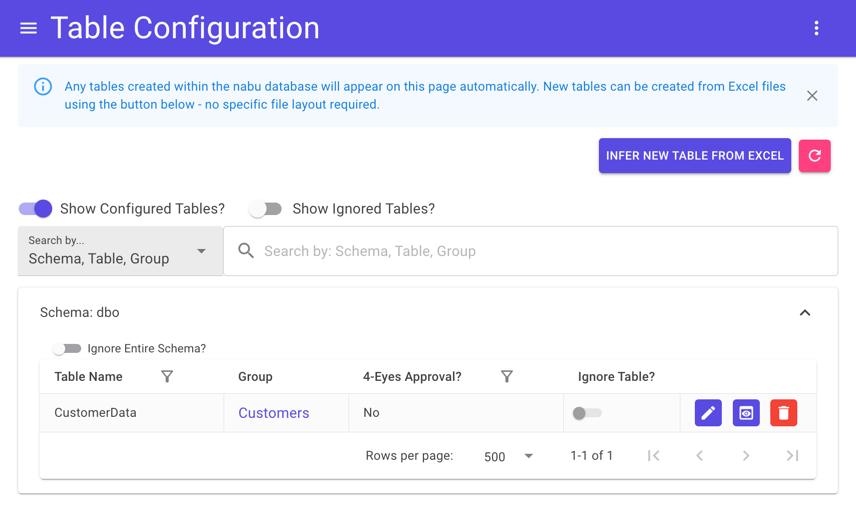
Your Table Configuration page will now list the new table.
Step 2: Interact with Tables
After uploading a table, return to the Dashboard to see your groups and tables:

Expand the group to show tables inside:
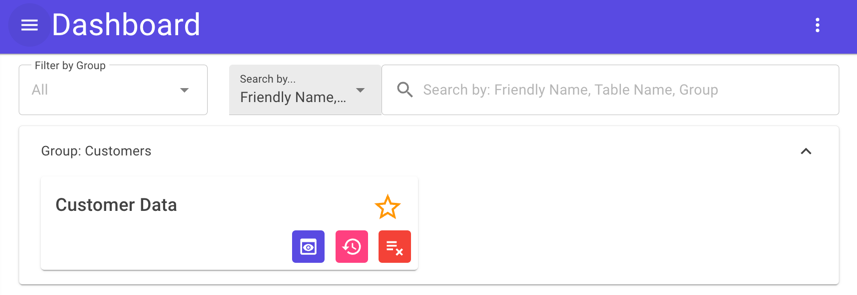
Table Actions
For each table, you can:
Toggle as a favourite
View the table's edit history
Remove the table from the Dashboard
View a summary of table data
Click Go to Summary to open the table’s data Summary page.
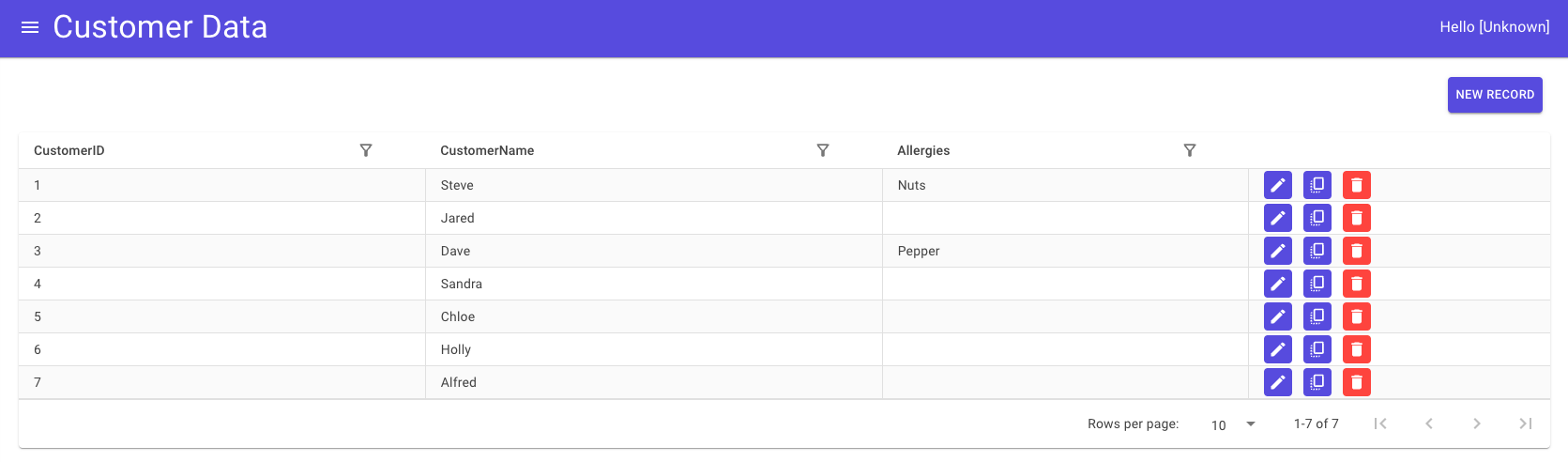
Adding a New Record
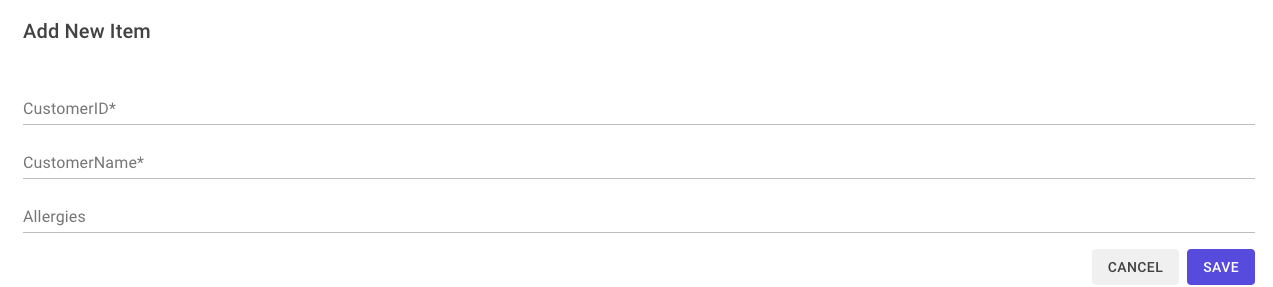
Use the New Record button to add new data:

Complete the form (required fields marked with *), ensuring unique business keys, then click Submit.
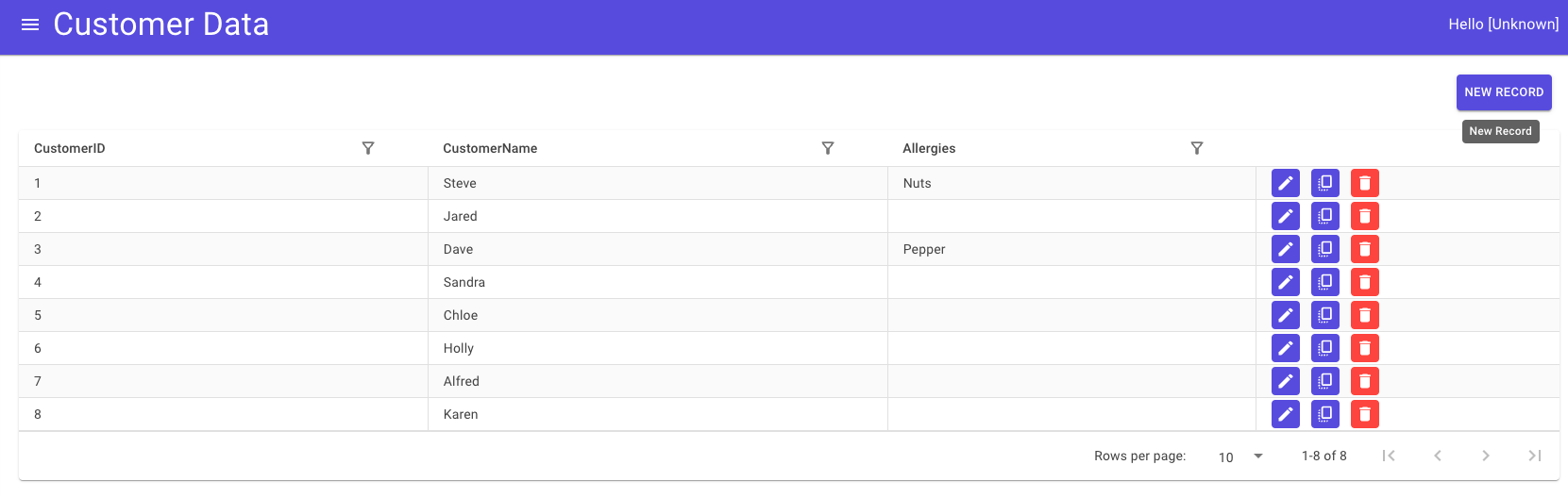
A new row will appear in the table:
Editing Existing Rows
Click Edit to modify data for an existing row:

The edit form pre-populates with current data for adjustments.
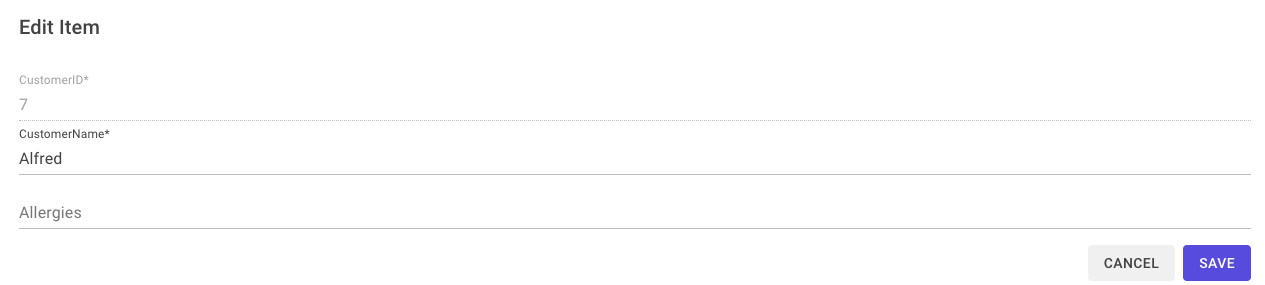
For example, Alfred’s allergy information has been updated:
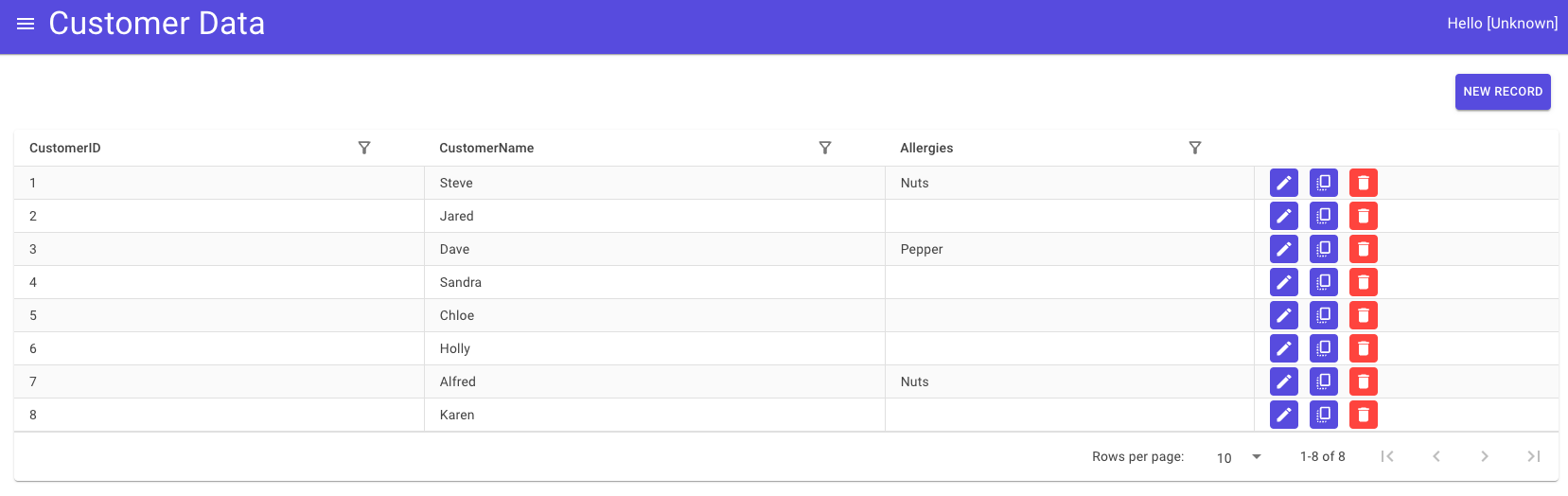
Duplicating Rows
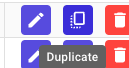
Click Duplicate to create a copy of a row:
The duplicate form appears pre-filled; update the business key before saving.
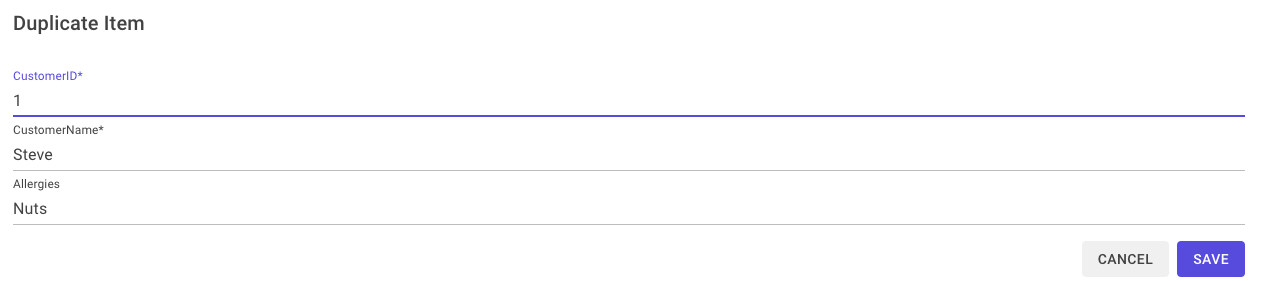
Here, Steve’s row is duplicated with a new unique key:
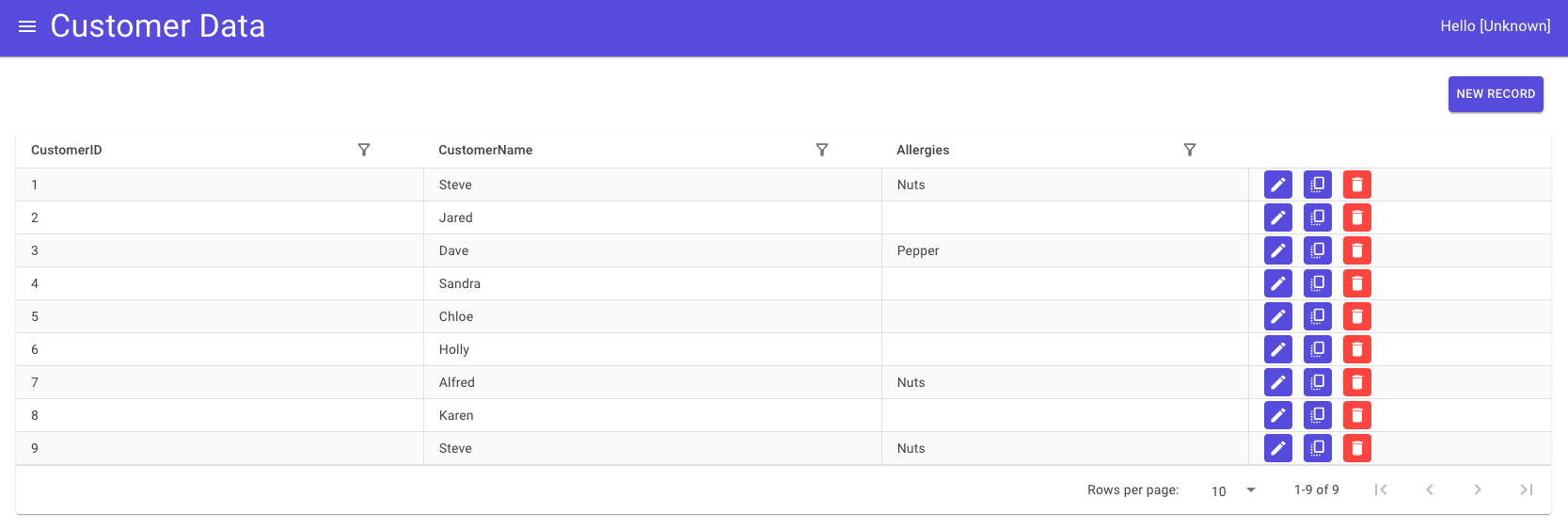
Deleting Rows
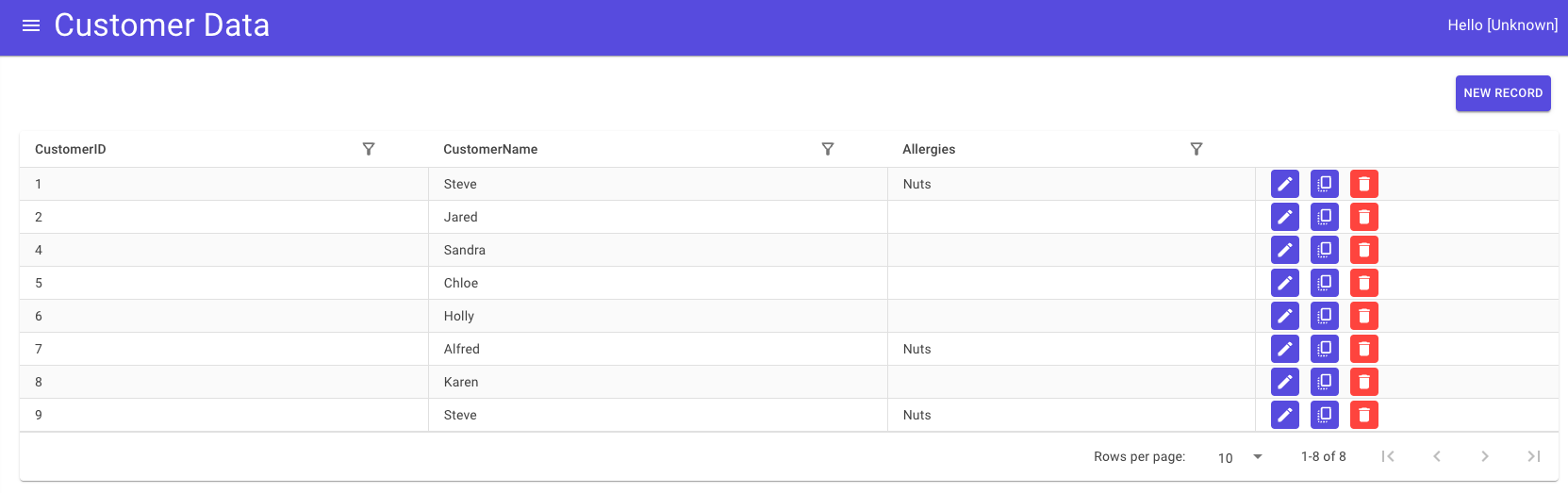
Use the Delete button to remove rows:

For example, Dave’s row has been deleted:
Congratulations on completing the Getting Started guide!
Explore further documentation on advanced topics via the page.
Foreign Keys
Adding Foreign Keys
Foreign keys can be added to new or existing tables:
For new tables, define foreign keys during Excel import.
For existing tables, add or edit foreign keys via the Edit Table page (accessed through the Table Configuration page).
Enable the foreign key toggle on the relevant column:

Set:
Referenced schema, table, and column (must be the primary key of the referenced table)
Display column, which shows the referenced table’s readable field in summaries

Notes:
The referenced table must exist in the database.
Circular foreign keys are not allowed.
All foreign key values must exist in the referenced column.
Editing Foreign Keys
Edit foreign keys through the Edit Table page, where toggles and fields will appear for existing keys.

Deleting Foreign Keys
To remove a foreign key, disable the toggle and save changes.