Dashboard (Data Management)
The Dashboard is your starting point for managing and monitoring your data tables within Bragi’s Static Data Management module. It offers flexible layouts and easy navigation to help you quickly access the data you need.
Dashboard Layouts
Empty Dashboard
If no tables have yet been added, the Dashboard will display a prompt encouraging you to add tables.
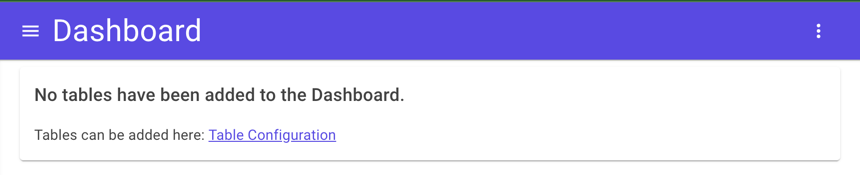
Click the provided link to open the Table Configuration page, where you can add new or existing tables to your Dashboard.
For full details on adding tables, see the Add Table to Dashboard or Add Table documentation.
Simple Dashboard
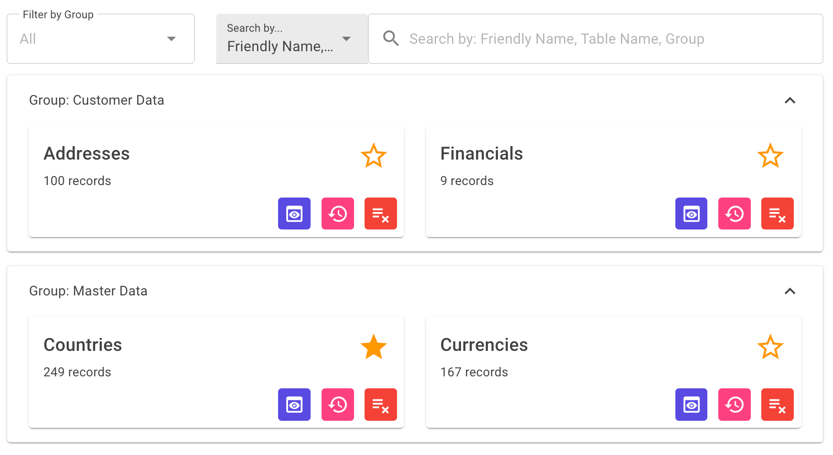
When you have 20 tables or fewer, the Dashboard uses a simple card-based layout, showing each table’s details clearly and accessibly.
Condensed Dashboard
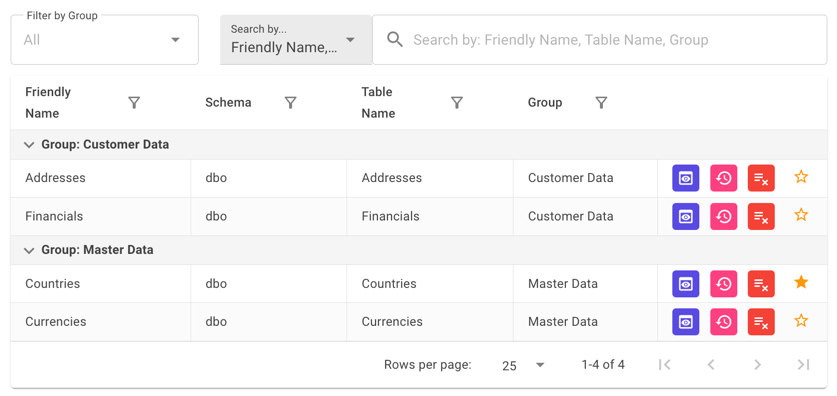
If more than 20 tables are added, the Dashboard switches to a condensed layout with compact table views to efficiently display all information.
View History
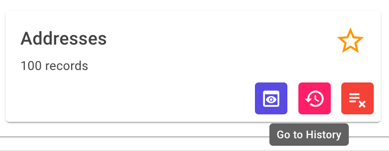
Access the History page via the “Go to History” button on any Dashboard card, allowing you to review the detailed edit history of each row, including audit column values.
On the History page, you’ll see a comprehensive record of changes for every row within the selected table.

Remove From Dashboard
To remove a table from your Dashboard, use the "Remove from Dashboard" button on the table's card.
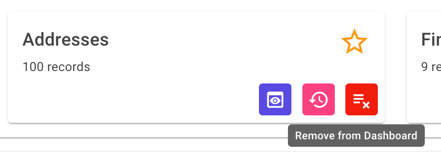
Note: If the removed table was also marked as a Favourite, it will be automatically removed from your Favourites.
Favourites
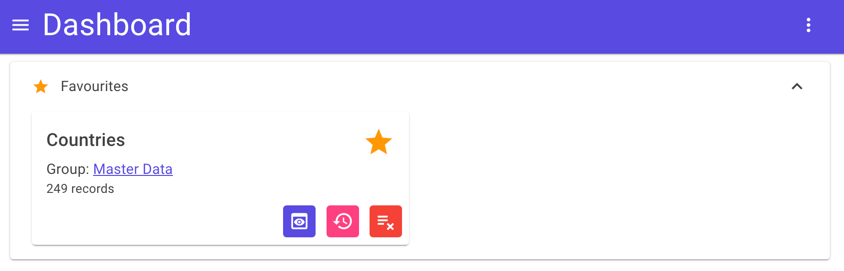
You can mark tables as Favourites by toggling the star icon on each table card. Favourites are unique to each user and provide quick, personalised access.
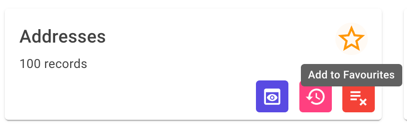
All Favourites appear in a dedicated group at the top of the Dashboard for easy access. This section is hidden if you have no Favourites.
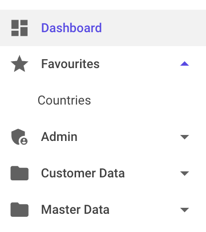
Your Favourites are also listed in the left-hand navigation bar, providing fast access to their respective Summary pages.
Search Bar
Use the search bar to quickly locate tables or groups by table name, friendly name, or group.

Filter results further by selecting a specific group using the dropdown to the left of the search bar.
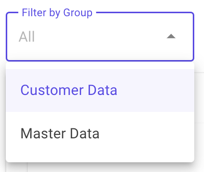
Alternatively, clicking any group label in your Favourites will automatically filter the Dashboard to show only that group.
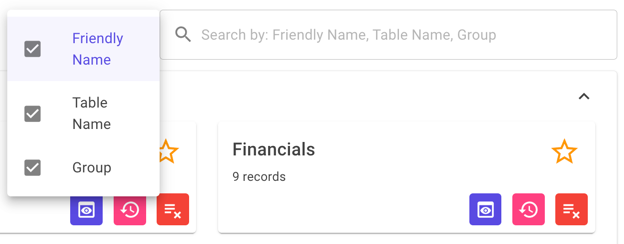
By default, search filters apply to the friendly name, table name, and group. If you need more control, click the dropdown to customize which fields are filtered.
The Dashboard combines powerful organisation and navigation features to give you flexible, streamlined access to your data tables at a glance.