Microsoft Servers
Bragi supports straightforward deployment on Microsoft Windows servers, making it easy for teams operating in Windows environments.
WebApp
Internet Information Services (IIS)
The Bragi WebApp is hosted on IIS. For a smooth setup, follow these key steps:
Enable WebSockets
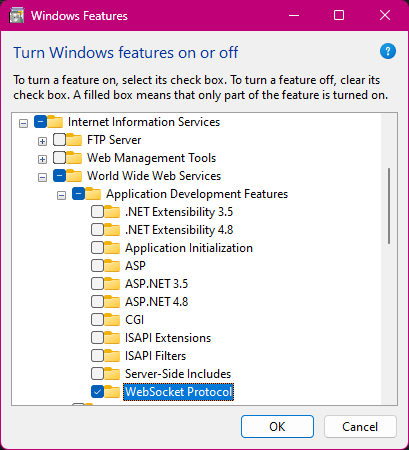
Bragi relies on WebSockets for interactive features and back-end communication. You’ll need to enable the WebSocket Protocol feature in Windows:
Open Windows Features (type “Turn Windows Features on or off” in the Start Menu).
Navigate through:
Internet Information Services └─ World Wide Web Services └─ Application Development Features └─ WebSocket Protocol ← ENABLE THIS!Click OK and let Windows apply the changes.
Set Maximum Worker Processes
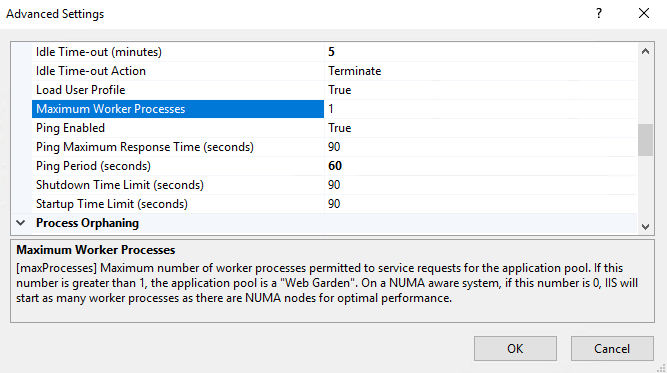
Bragi requires that the Application Pool for the WebApp runs with only 1 worker process:
Open IIS Manager.
Go to Application Pools, select the Bragi App Pool, and open Advanced Settings.
Set Maximum Worker Processes to
1.
This avoids session and cache issues that can occur with multiple processes.
Bragi Schedulers
Bragi Schedulers should be installed as Windows Services. This ensures they run in the background and start automatically with the server.
Installing as a Windows Service
Open PowerShell as Administrator.
Use the
sc.execommand to create a new service for each environment you need (adjust paths/names as required):
Open Services (search "Services" in the Start Menu).
Find the
BragiScheduler [Environment]you just created and open its Properties:
Set Startup Type to Automatic so it starts with the server.
Assign a Service Account that has the necessary permissions to access Bragi’s databases (see Scheduler Service Account Permissions for the exact minimum permissions on the meta database).
Configure Recovery options (optional) to automatically restart the service if it ever fails.
Best Practises
Always test deployment on a non-production environment first.
Make sure firewalls and network security groups permit traffic between Bragi components and your databases.
Keep your Bragi and Windows installations up-to-date for security and stability.