Actions
This section outlines key features of Bragi’s User Interface, especially focusing on the navigation panel and all user actions available across different screens. Actions are grouped by context to make it easier to locate their purpose and effect.
Interface Overview
Navigation Panel
Bragi’s navigation panel is displayed on the left side of the UI. It provides quick access to all main areas of the platform, including configuration management, archives, scheduling, and reports.
Action Types and Contexts
Actions in Bragi are grouped by the section of the platform in which they are presented. This ensures users see only relevant controls for the task at hand.
1. Generic Actions (for Configurations)
These actions are available for most configurations throughout Bragi.

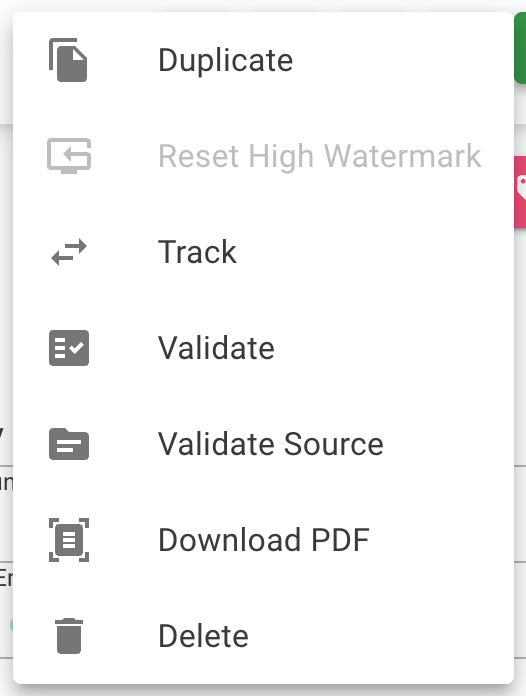
Button | Description |
|---|---|
Edit | Opens the configuration in edit mode, allowing changes to settings and parameters. |
Run Now | Immediately runs the selected configuration, bypassing any scheduled run times. |
View Data | Displays the data currently held in the warehouse table represented by the configuration. |
View Dependency Tree | Shows a diagram of all connected and upstream/downstream configurations. |
Duplicate | Creates an exact copy of the configuration. |
Validate | Compares the actual table schema with Bragi’s metadata. |
Validate Source | Compares the table schema against the source; flags differences in column type, name, or nullability. |
Download PDF | Exports a PDF report of the configuration’s structure, dependencies, and metadata. |
Delete | Permanently removes the configuration from Bragi and the warehouse. |
2. Load Actions
These are available when working with data loads or reloads in configurations.
Button | Description |
|---|---|
Reset High Watermark | Clears the stored high watermark, triggering a full reload on the next run. |
3. Archive Actions
Actions unique to Tracker and Traditional Archive screens.
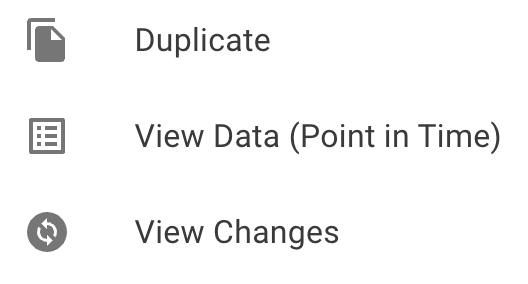
Button | Description |
|---|---|
View Data (Point in Time) | Shows data in the archive as it existed at a specific date. |
View Changes | Shows changes in archived data between selected dates. |
4. Stage (Edit Config) Actions
Contextual actions on the “Stage” (Edit) section of configurations.
Button | Description |
|---|---|
Infer from SQL | Analyses the provided SQL to automatically infer column structure, data types, and nullability settings for the configuration. |
Restore old version | Reverts to a previous version of the configuration. |
Preview script | Shows you the SQL DDL scripts that will be run when creating or editing a config. |
5. Code (Edit Config) Actions
Controls in the code editing area.
Button | Description |
|---|---|
Download Project ZIP | Downloads all code files and related assets for the configuration as a ZIP archive. The project runs against the |
Compile Code | Compiles the current code for the configuration (description required). |
Refresh Columns and Code Libraries | Updates available columns and refreshes linked code libraries. |
Preview script | Shows you the SQL DDL scripts that will be run when creating or editing a config. |
6. Jobs Actions
Controls for scheduling and managing jobs.
Button | Description |
|---|---|
Change Schedule | Opens a popup to set the job's CRON, its schedule rules and its next scheduled run, without opening the Job for editing. |
7. Stored Procedure (Edit Config) Actions
Actions related to stored procedure–driven configurations.
Button | Description |
|---|---|
Refresh Parameters | Reloads the stored procedure’s parameters. |
Change Source | Switches or edits the data source used. |
Restore old version | Restores an earlier version of the stored procedure. |